Book Another Visit
Use the Book Another Visit flow to create an additional appointment within the same specialty when a scheduled visit already exists.
Access this flow from the specialty selection popup or from an existing appointment. This flow supports signed-in patients only.
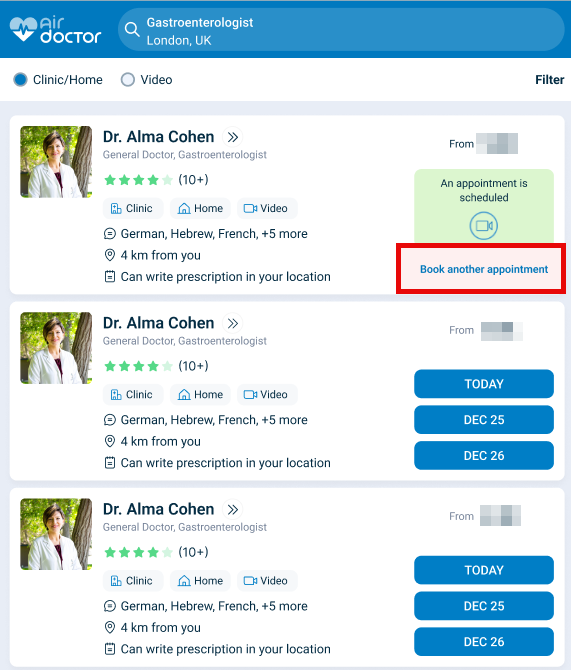
This screen includes
- A Book another appointment link that appears when a scheduled appointment exists for the selected specialty.
- A calendar selector that opens when the user selects Any date and supports dates beyond the next three days.
- The standard appointment wizard for date, time, and provider selection.
- An eligibility validator that verifies policy allowance for additional visits.
- An inline warning banner that explains potential fees when policy limits apply.
- Navigation controls that match the standard booking flow.
Workflow
Eligibility requirements
Policy rules control whether an additional visit is allowed.
This sequence describes how a patient creates an additional visit.
- Select Book another appointment.
- View the appointment wizard with Any date preselected.
- Select a date.
- When the date is unavailable, the app displays an error and reopens the calendar.
- Validate eligibility.
- When policy allows the visit, continue the flow.
- When policy blocks the visit, display an eligibility message.
- Complete the remaining booking steps.
- Submit the request and view the confirmation screen.
Validations
These rules control visibility, eligibility, and date selection.
| Scenario | App Behavior |
|---|---|
| Appointment exists in pending or proposed status. | Hides the Book another appointment link. |
| No remaining visits exist under the policy. | Hides the Book another appointment link. |
| Buffer period after the earliest scheduled visit applies. | Hides the Book another appointment link. |
| Policy fee may apply. | Displays the warning banner. |
| Selected date falls outside provider availability. | Rejects the date selection. |
Actions
Booking behavior follows standard appointment rules.
| Scenario | App Behavior |
|---|---|
| User submits the request. | Creates a new case for a follow-up or regular visit based on policy rules. |
| Booking initiates. | Uses the standard booking API. |
| Request creation succeeds. | Transitions the request into the standard appointment flow. |
Endpoint Resources
🧰 Endpoint Resources under construction