Cancel Appointment
Use Cancel Appointment to start cancellation from the appointment details screen.
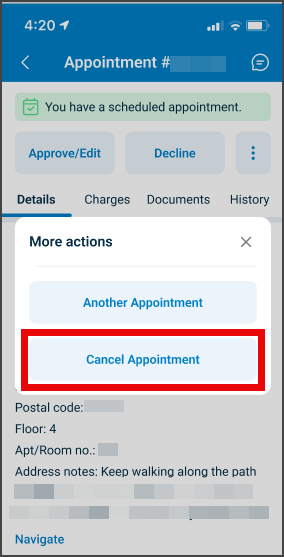
This screen includes:
| # | Element | Description |
|---|---|---|
| 1 | Appointment header | Displays the doctor name and reference number. |
| 2 | Appointment tabs | Provides access to Details, Charges, and Documents. |
| 3 | Appointment information | Displays date, time, visit type, location, doctor, and specialty. |
| 4 | Patient details | Displays patient information and medical issue status. |
| 5 | Cancel appointment action | Opens the cancellation flow. |
| 6 | Update payment action | Opens payment update for the appointment. |
Workflow
- Open the appointment details screen.
- Select Cancel appointment.
- Load the Decline appointment screen.
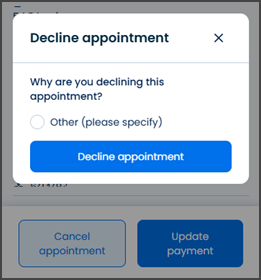
- Select a cancellation reason when required.
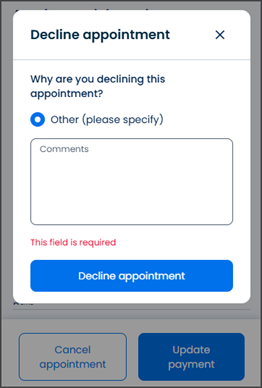
- Submit the cancellation request.
- Refresh the appointment state.
Validations
| Scenario | App behavior | SDK output |
|---|---|---|
| Session invalid | Block request | state = unauthenticated |
| Appointment missing | Display error state | error = appointment_required |
| Cancellation unavailable | Hide or disable cancellation action | cancellation = unavailable |
| Cancellation reason missing | Disable confirmation | validation = reason_required |
| Cancellation succeeds | Refresh appointment state | appointment = cancelled |
| Request rejected | Display error state | status = 405 |
Actions
| Scenario | App behavior | SDK output |
|---|---|---|
| Cancel appointment selected | Load cancellation flow | PUT /api/v3/appointments/{appointment-id}/cancel |
| Cancellation reason selected | Update selected reason | PATCH /api/v3/appointments/{appointment-id}/cancel/change-reason |
| Cancellation confirmed | Submit cancellation request | POST /api/v3/appointments/{appointment-id}/cancel |
| Update payment selected | Open payment update flow | navigation = update_payment |
| Back selected | Return to previous screen | navigation = back |
Endpoint Resources
Cancel Appointment
PUT
v3/appointments/{appointment-id}/cancel
Returns the cancellation flow for the selected appointment.
Update Reason
PATCH
v3/appointments/{appointment-id}/cancel/change-reason
Updates the selected cancellation reason.
Confirm Cancellation
POST
v3/appointments/{appointment-id}/cancel
Cancels the selected appointment.