Getting Started
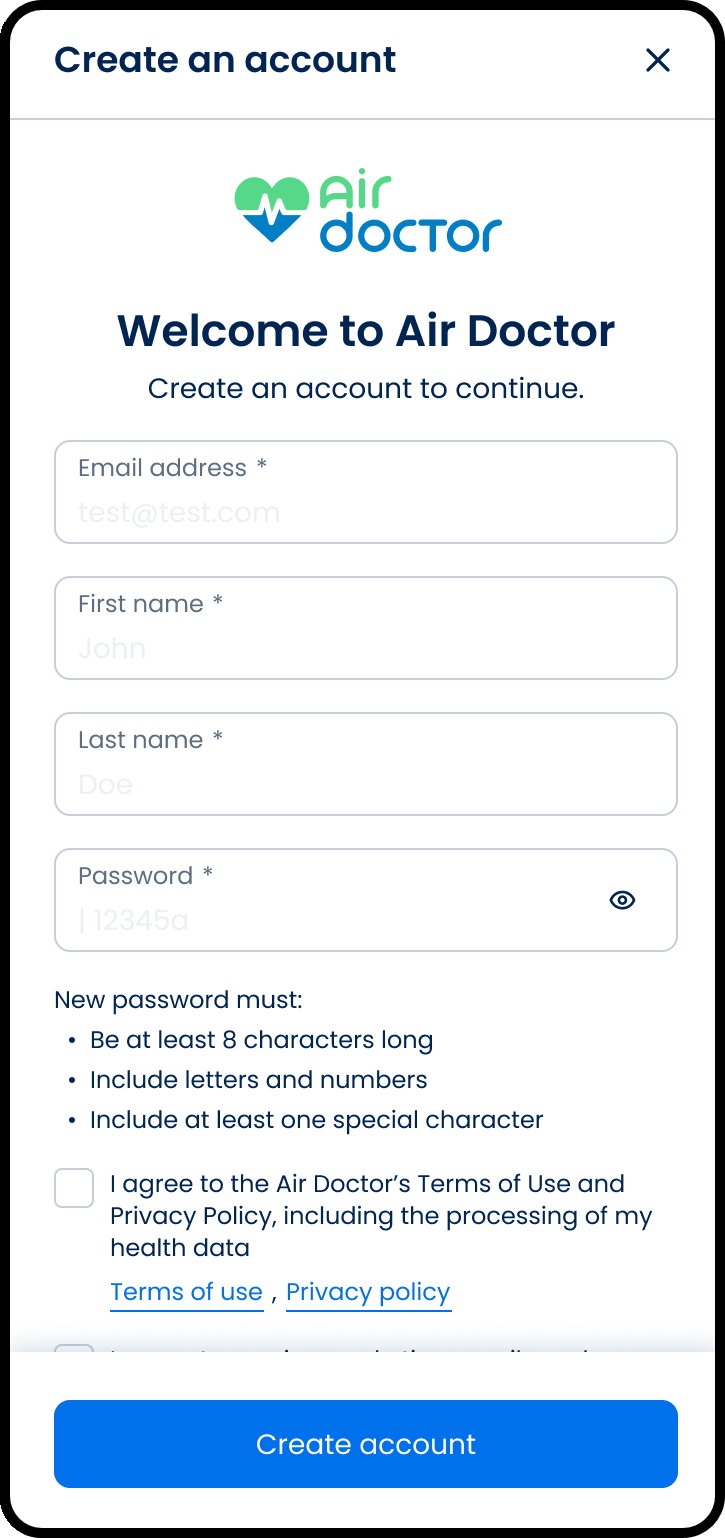
Use the Create Account screen to register a new patient in the Air Doctor app.
This screen appears when the email address does not match an existing account.
As a third-party integrator, you embed or route users to the screen during onboarding.
This screen includes:
- Email address field.
- First name and Last name fields.
- New password field with a password visibility toggle.
- Password requirements: At least 8 characters, including letters, numbers, and symbols (!, &, @, or #).
- Required consent checkbox for the Terms of Use and Privacy Policy.
- Optional marketing opt-in checkbox.
Workflow
- Open the Air Doctor Patient App from the host app or through direct launch.
- Select Create account.
- Enter a valid email address.
- Enter first and last name.
- Create a password that meets complexity rules.
- Select the Terms of Use consent checkbox.
- Optional, select the marketing opt-in checkbox.
- Select Continue to submit the registration request.
Actions
After the user submits valid input, Air Doctor and the partner system perform actions based on the selected integration level.
| Scenario | App Behavior | SDK Output | Integration Level Impact |
|---|---|---|---|
| User submits valid input. | Creates the patient account in the Air Doctor backend. | Returns a success object with the patient identifier. | Levels 1–3: Air Doctor owns the operation. Level 4: Operation triggers inside an Air Doctor module. Levels 5–6: Partner triggers the request through the SDK or Open API. |
| Account creation succeeds. | Saves the email address and session token inside Air Doctor services. | Returns token, user profile, and partner scope information. | Levels 1–2: Air Doctor stores all session data. Levels 3–4: Air Doctor supplies session data; partner may store it if needed. Levels 5–6: Partner stores session data for its own logic. |
| SDK receives a successful backend response. | Moves to the next step in the onboarding sequence. | Provides control to the integrator to route the user to the next screen. | Levels 1–2: Air Doctor controls routing. Levels 3–4: Partner controls navigation; Air Doctor exposes screen entry points. Levels 5–6: Partner owns navigation completely. |
Air Doctor owns the account model and identity lifecycle at Levels 1–4. Partners own identity flows and routing at Levels 5–6.
Partner Responsibilities
Partner responsibilities depend on the chosen integration level.
Levels 1–2: Redirect or Embedded WebView
- Use the approved entry point to open Air Doctor.
- Avoid storing credentials or passwords.
- Maintain basic navigation back into the partner app.
- Handle minimal consent content inside the host app.
Levels 3–4: Combined UI and Module-Based Integration
- Manage navigation and screen sequencing.
- Store session tokens if partner-side flows depend on authenticated state.
- Track user identity for insurance eligibility or claim mapping.
- Ensure alignment with Air Doctor release notes, module updates, and SDK changes.
Levels 5–6: Custom UI or Direct Open API
- Implement UI screens that trigger account creation.
- Use the SDK or Open API to create accounts and manage identity.
- Store session tokens and user profiles securely.
- Maintain compliance, auditing, localization, and branding.
- Monitor API lifecycle, schema updates, and changes to hypermedia actions.
Across all levels, Air Doctor owns domain rules and validation for medical logic unless the partner operates at Level 6.
Error Handling
Air Doctor exposes structured error objects. The partner must handle recovery based on integration level.
Input and Validation Errors
- InvalidInput errors: Display a message and request corrected fields.
- EmailConflict errors: Route to a sign-in path.
- ConsentMissing errors: Prompt the user to select the required checkbox.
Platform and Network Errors
- Network errors: Retry through partner retry logic (Levels 3–6) or rely on Air Doctor retry logic (Levels 1–2).
- Server errors: Display an escalation message and re-enter the flow.
Integration Level Impact
| Error Type | Level 1–2 | Level 3–4 | Level 5–6 |
|---|---|---|---|
| Input validation | Air Doctor displays messages. | Air Doctor modules supply errors; partner displays UI. | Partner handles UI based on SDK/Open API. |
| Network failures | Air Doctor owns retry logic. | Partner chooses retry strategy. | Partner owns networking and retry policies. |
| Server errors | Air Doctor displays fallback UI. | Partner integrates fallback screens. | Partner owns error recovery. |
Air Doctor returns metadata with codes, context, and remediation requirements.
Security and Data Handling
Security depends on the integration level.
Air Doctor Responsibilities (All Levels)
- Encrypt session tokens.
- Handle PII through secure backend services.
- Enforce TLS communication.
- Maintain identity policies and password complexity.
Partner Responsibilities
| Level | Responsibilities |
|---|---|
| 1–2 | No storage of Air Doctor credentials; rely on Air Doctor identity. |
| 3–4 | Optional storage of session tokens; ensure compliance with insurer requirements. |
| 5–6 | Full responsibility for UI, PII processing, API access, and authentication storage. |
At no level does the partner store password content or raw sensitive input.
UI Configuration Notes
UI configuration options depend on the integration level.
Levels 1–3
Air Doctor controls:
- Layout
- Structure
- Text
- Validation rules
- Password policies
Partner may control:
- Locale through initialization
- Optional CSS overrides at Level 3
Level 4
Partner controls navigation and screen order. Air Doctor controls components and internal behavior.
Level 5–6
Partner controls all UI. SDK or Open API provides rules, state, and domain responses.
Air Doctor ensures accessible UI patterns at every level where Air Doctor owns screens.