Video Visit
Available controls and session actions derive from device capability and session state.
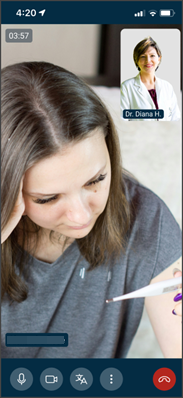
This screen includes:
| # | Element | Description |
|---|---|---|
| 1 | Video room | Displays the active video consultation. |
| 2 | Participant video | Shows the local or remote participant stream. |
| 3 | Session timer | Displays call duration. |
| 4 | Mute action | Toggles microphone audio. |
| 5 | Disable video action | Toggles the local camera stream. |
| 6 | Swap camera action | Switches the active camera. |
| 7 | End call action | Ends the video session. |
| 8 | Report issue action | Opens the issue reporting flow. |
Workflow
- Open the scheduled video appointment.
- Load the video room.
- Request camera and microphone permissions when required.
- Start the video session.
- Use call controls during the consultation.
- End the call or report an issue.
Session States
| State | Description |
|---|---|
waiting | Waiting for the video session or participant. |
active | Video session is active. |
reconnecting | Connection retry is in progress. |
ended | Video session ended. |
error | Video session is unavailable. |
Validations
| Scenario | App behavior | SDK output |
|---|---|---|
| Appointment missing | Block video room load | error = appointment_required |
| Camera permission missing | Request or block camera access | error = camera_permission_required |
| Microphone permission missing | Request or block microphone access | error = microphone_permission_required |
| Network unavailable | Block session connection | error = network_unavailable |
| Connection interrupted | Start reconnection state | state = reconnecting |
| Camera switch unavailable | Hide or disable swap camera action | camera = unsupported |
| Session ended | Disable call controls | state = ended |
| Request rejected | Display error state | status = 405 |
Actions
| Scenario | App behavior | SDK output |
|---|---|---|
| Video room opens | Load video consultation screen | PUT /api/v3/appointments/{appointment-id}/video-room |
| Call starts | Initialize video session | session = started |
| Mute selected | Toggle microphone | audio = updated |
| Disable video selected | Toggle camera stream | video = updated |
| Swap camera selected | Switch active camera | camera = updated |
| End call selected | Terminate video session | state = ended |
| Report issue selected | Open issue reporting flow | navigation = report_issue |
Endpoint Resources
Video Visit
PUT
v3/appointments/{appointment-id}/video-room
Returns the video room screen for a scheduled video consultation.
UI Element Types
| Level | Reference | Type | Value | Placement |
|---|---|---|---|---|
| 1 | start-call | Button | Start call | — |
| 1 | end-call | Link | End call | ~ |
| 1 | report-issue | Link | Report issue | ~ |
| 1 | swap-camera | Link | Swap camera | ~ |
| 1 | disable-video | Link | Disable video | ~ |
| 1 | mute | Link | Mute | ~ |
| 1 | spacer | Spacer | — | ~ |