Home Screen
Use the Home Screen to define search context and start provider discovery.
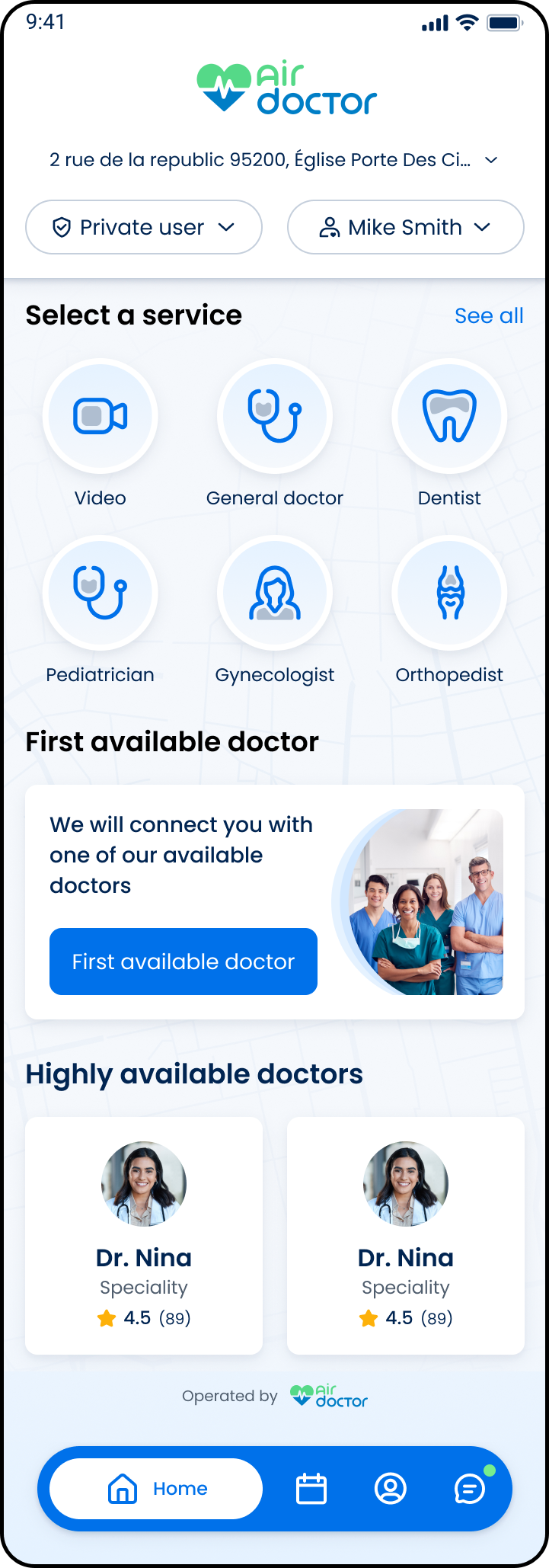
This screen includes:
| # | Element | Description |
|---|---|---|
| 1 | Header | Displays Air Doctor branding, location selector, coverage selector, and member selector |
| 2 | Service section | Displays available service tiles and See all action |
| 3 | Service tile | Opens provider discovery for the selected service |
| 4 | First available doctor card | Starts the first available doctor flow |
| 5 | Highly available doctors section | Displays provider cards with name, specialty, and rating |
| 6 | Footer branding | Displays Operated by Air Doctor |
| 7 | Bottom navigation | Displays Home as the active destination |
Workflow
- Open the Home Screen.
- Select coverage and member when available.
- Enter or confirm location.
- Enter a search term or select a service.
- Open the Doctor List with the current context.
Validations
| Scenario | App Behavior | SDK Output |
|---|---|---|
| Location missing | Disable search and service selection | Missing location state |
| Location invalid | Display error and block progression | Invalid location state |
| Location available | Enable discovery and services | Location context ready |
| Location permission granted | Prefill location | Location resolved |
| Coverage selected | Restrict services and availability | Coverage constraint applied |
| Coverage updated | Refresh available content | Updated coverage state |
| Providers available | Display services and doctors | Availability dataset returned |
| Providers unavailable | Hide or disable services | Empty availability state |
| User authenticated | Display coverage and member selectors | User context available |
| User unauthenticated | Hide account-specific controls | Guest state |
| Video-only availability | Restrict booking to video | Video-only state |
| Unsupported location | Block booking | Unsupported location state |
Actions
| Scenario | App Behavior | SDK Output |
|---|---|---|
| Coverage selected | Update coverage context | coverage = updated |
| Member selected | Update member context | member = updated |
| Location entered or changed | Update location and refresh availability | location = updated |
| Search input entered | Update query and suggestions | query = updated |
| Service selected | Navigate to Doctor List with context | context = submitted |
| Bottom navigation selected | Switch top-level screen | activeRoute = <destination> |
| Side navigation opened | Display navigation panel | panel = open |
Endpoint Resources
PUT
Home Screen for Patient
v3/home
Produces the home screen for patient.
Show More Categories
PATCH
v3/home/show-category
Shows and hides more specialties when available.
Update Information on Home Screen
PATCH
v3/home/update
Refreshes information on Home page.