Home Screen - Video Only
The Video Only state limits booking to video consultations when in-person availability is not supported. This state appears when coverage or location does not allow in-person visits.
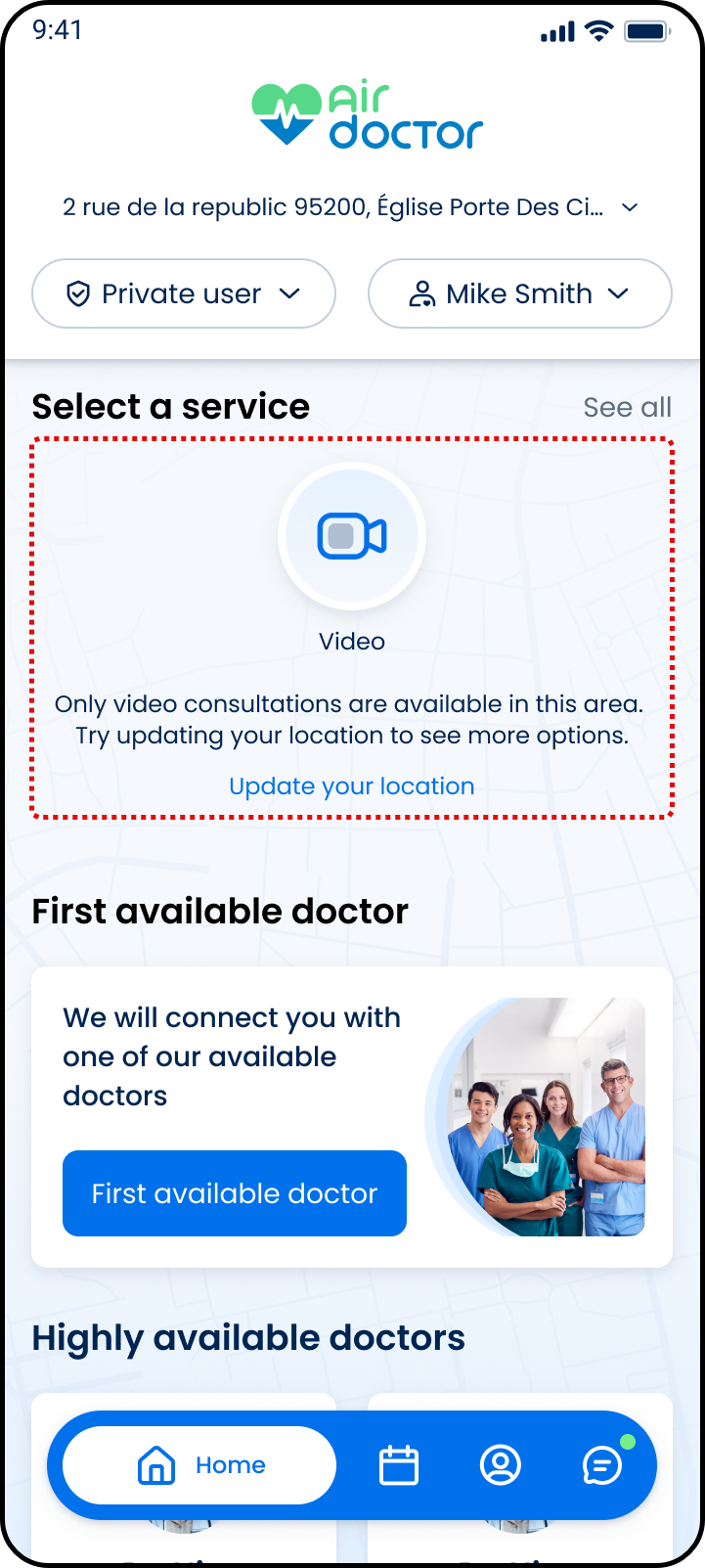
This screen includes:
| # | Element | Description |
|---|---|---|
| 1 | Header | Displays branding, location selector, coverage selector, and member selector |
| 2 | Service section | Displays Video as the only available service |
| 3 | Availability message | Explains that only video consultations are available for the selected area |
| 4 | Update location action | Allows the user to change location and check for more options |
| 5 | First available doctor card | Starts the first available doctor flow |
| 6 | Highly available doctors section | Displays available provider cards when returned |
| 7 | Bottom navigation | Displays Home as the active destination |
Workflow
This flow starts when the Video Only state is active.
- Resolve location and availability.
- Display video-only state.
- Select primary action to start video booking.
Validations
| Scenario | App Behavior | SDK Output |
|---|---|---|
| Coverage allows video only | Display video-only state | availability = video_only |
| Location supports video only | Display video-only state | availability = video_only |
| In-person services unavailable | Hide non-video services | visitTypes = [video] |
| Availability becomes supported for in-person | Exit video-only state | availability = available |
Actions
| Scenario | App Behavior | SDK Output |
|---|---|---|
| Primary action selected | Start video booking flow | activeRoute = videoBooking |
| Location, coverage, or member updated | Re-evaluate availability | availability = updated |
| Bottom navigation selected | Navigate to destination | activeRoute = <destination> |
Show Video Doctor
PUT
v3/home/video
Shows video specialties popup on video doctor click.