Home Screen - Not Available
Use the Not Available state when the selected location has no supported booking options.
Availability derives from the selected location, coverage context, and service configuration.
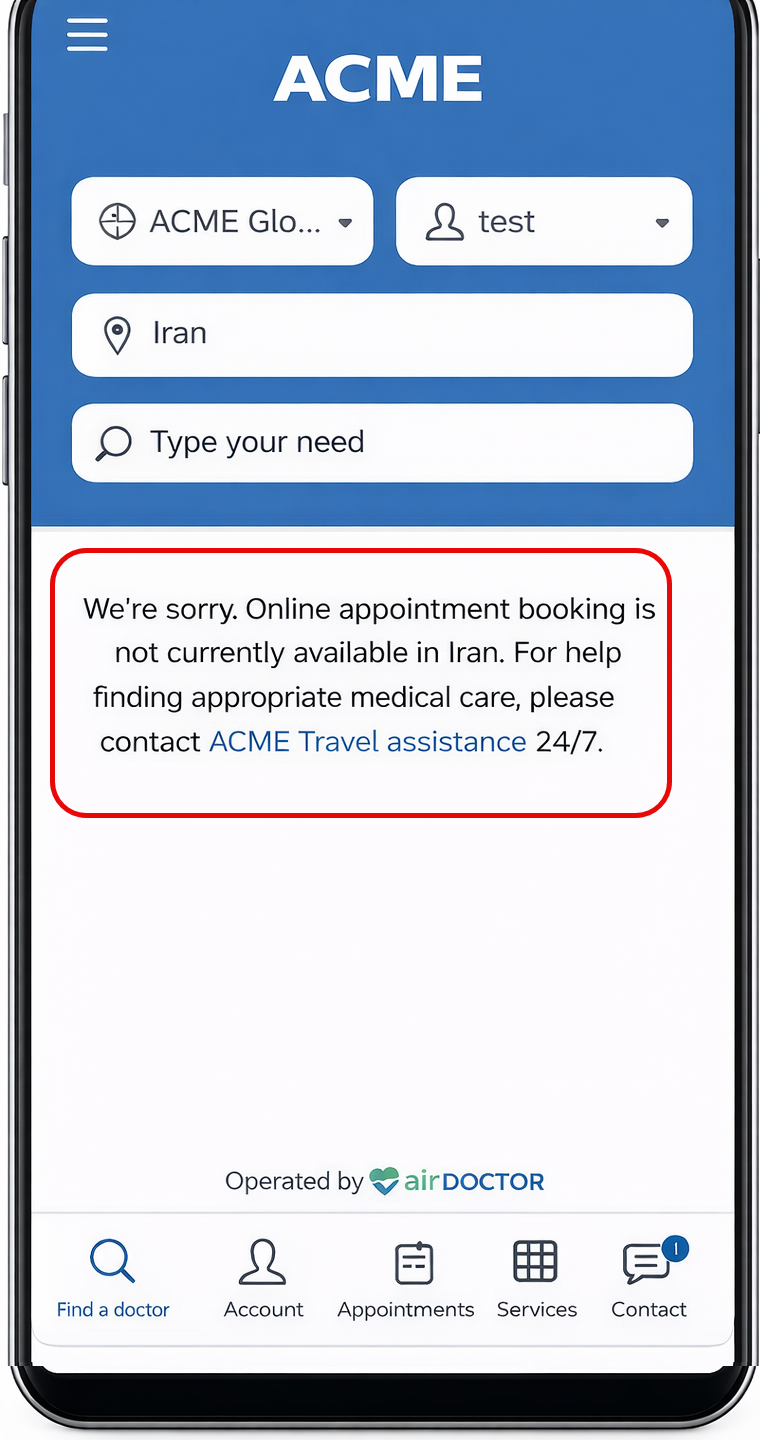
This screen includes:
| # | Element | Description |
|---|---|---|
| 1 | Location selector | Updates the service location |
| 2 | Coverage selector | Updates the active coverage context |
| 3 | Member selector | Updates the selected patient |
| 4 | Service section | Displays booking availability state |
| 5 | Unavailable message | Explains that booking is not supported |
| 6 | Support link | Opens support when available |
| 7 | Bottom navigation | Opens primary app sections |
Workflow
- Resolve the selected location.
- Evaluate service availability.
- Display the Not Available state when no booking options exist.
- Update location or navigate to another section.
Validations
| Scenario | App Behavior | SDK Output |
|---|---|---|
| Location unsupported | Block booking | availability = unsupported |
| No services available | Display empty state | availability = empty |
| Services available | Display standard Home screen | availability = available |
| Location cleared | Reset Home state | availability = reset |
Actions
| Scenario | App Behavior | SDK Output |
|---|---|---|
| Location updated | Recheck availability | location = updated |
| Availability supported | Show booking options | availability = available |
| Support selected | Open support flow | support = opened |
| Navigation selected | Open destination | activeRoute = <destination> |