Policy List
Use Focus Policies to select the active policy when multiple policies exist under the same company.
Eligible policies and patient labels derive from the policy resolution response.
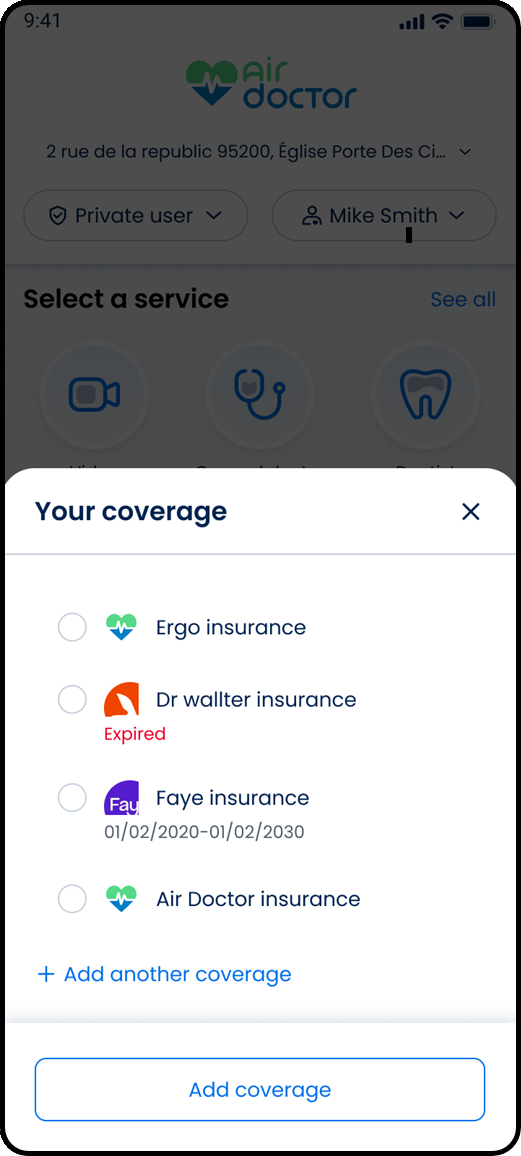
This screen includes:
| # | Element | Description |
|---|---|---|
| 1 | Header | Displays screen title and close action |
| 2 | Policy list | Displays eligible policies |
| 3 | Policy card | Displays provider, dates, and policy details |
| 4 | Selected state | Marks the active policy |
| 5 | Add coverage action | Opens the add coverage flow |
| 6 | Close action | Dismisses the screen |
Policy Resolution
| Scenario | Behavior |
|---|---|
| Multiple active policies | Display eligible policy options |
| One active policy | Select the policy automatically |
| Duplicate patient names | Add policy suffix for disambiguation |
| No active policies | Display empty state |
Example duplicate label:
John Doe (1234)
Workflow
- Load eligible policies.
- Render policy options.
- Select a policy or patient entry.
- Resolve the active policy.
- Update coverage-dependent UI.
Validations
| Scenario | App Behavior | SDK Output |
|---|---|---|
| Multiple active policies exist | Display selector | policies = available |
| No active policies exist | Display empty state | policies = empty |
| Duplicate patient names exist | Display disambiguated labels | labels = disambiguated |
| Selected entry has no active policy | Block selection | error = no_matching_policy |
| Policy expired | Disable policy option | policy = expired |
Actions
| Scenario | App Behavior | SDK Output |
|---|---|---|
| Selector opened | Load policy options | policies = loaded |
| Policy selected | Resolve active policy | policy = selected |
| Duplicate entry selected | Resolve by policy identifier | policy = resolved |
| Selection changed | Update focus state | policy = updated |
| Add coverage selected | Open add coverage flow | navigation = add_coverage |
| Screen closed | Preserve current policy | state = unchanged |
Endpoint Resources
Policies List Screen
PUT
v3/coverage
Displays the user’s insurance coverage screen with all active policies.
Update Coverage
PATCH
v3/coverage/update
Updates travel dates on the current coverage screen or popup.