Video Permissions
Use the Existing Patient screen to review and update missing patient details for a saved patient profile.
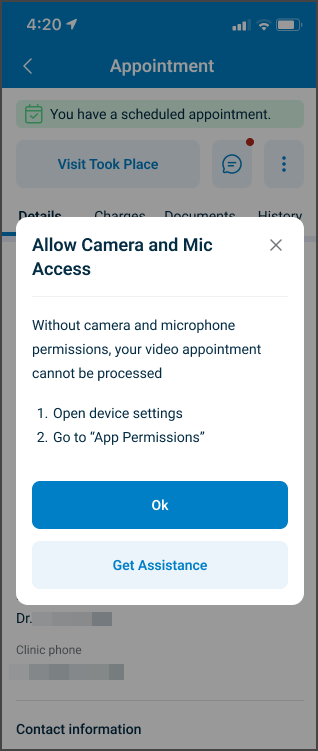
This screen includes:
| # | Element | Description |
|---|---|---|
| 1 | Dialog title | Displays Allow camera and microphone access |
| 2 | Close action | Dismisses the dialog |
| 3 | Permission illustration | Shows camera permission guidance |
| 4 | Requirement message | Explains that camera and microphone access is required for the video appointment |
| 5 | Device settings instructions | Lists the steps to enable camera and microphone permissions |
| 6 | Continue action | Continues after the user updates permissions |
| 7 | Get assistance link | Opens support help |
Workflow
This flow starts when the user attempts to start a video session.
- Open the video appointment flow.
- Check camera and microphone permissions.
- Display the Allow camera and microphone access dialog when either permission is missing.
- Review the device settings instructions.
- Open the device settings and allow camera and microphone access.
- Return to the app.
- Select Continue.
- Recheck permissions and continue the video appointment flow.
Assistance Flow
- Select Get assistance.
- Open support help.
- Return to the permission flow when ready.
Validations
| Scenario | App Behavior | SDK Output |
|---|---|---|
| Camera or microphone permission missing | Display permission access dialog | permissions = required |
| Camera and microphone permissions granted | Allow video appointment flow to continue | permissions = granted |
| Permission remains blocked | Keep user in permission recovery state | permissions = blocked |
Actions
| Scenario | App Behavior | SDK Output |
|---|---|---|
| Continue selected | Recheck camera and microphone permissions | Permission check triggered |
| Get assistance selected | Open support help | Navigation event |
| Close selected | Dismiss dialog | No state change |
WebView Considerations
note
Permission handling differs in mobile WebView environments.
- Only one native permission prompt appears per session.
- After denial, the app cannot trigger another system prompt.
- Always display a fallback modal with manual enablement steps for iOS and Android.
Endpoint Resources
Video Permission
PUT
v3/permissions/video
Displays the permission request dialog for the specified appointment.
Permission Request
PATCH
v3/permissions/video/update
Updates permission state after the user grants or modifies access.