Invite Interpreter
Use the Add an Interpreter popup to add an audio-only interpreter to an active video consultation.
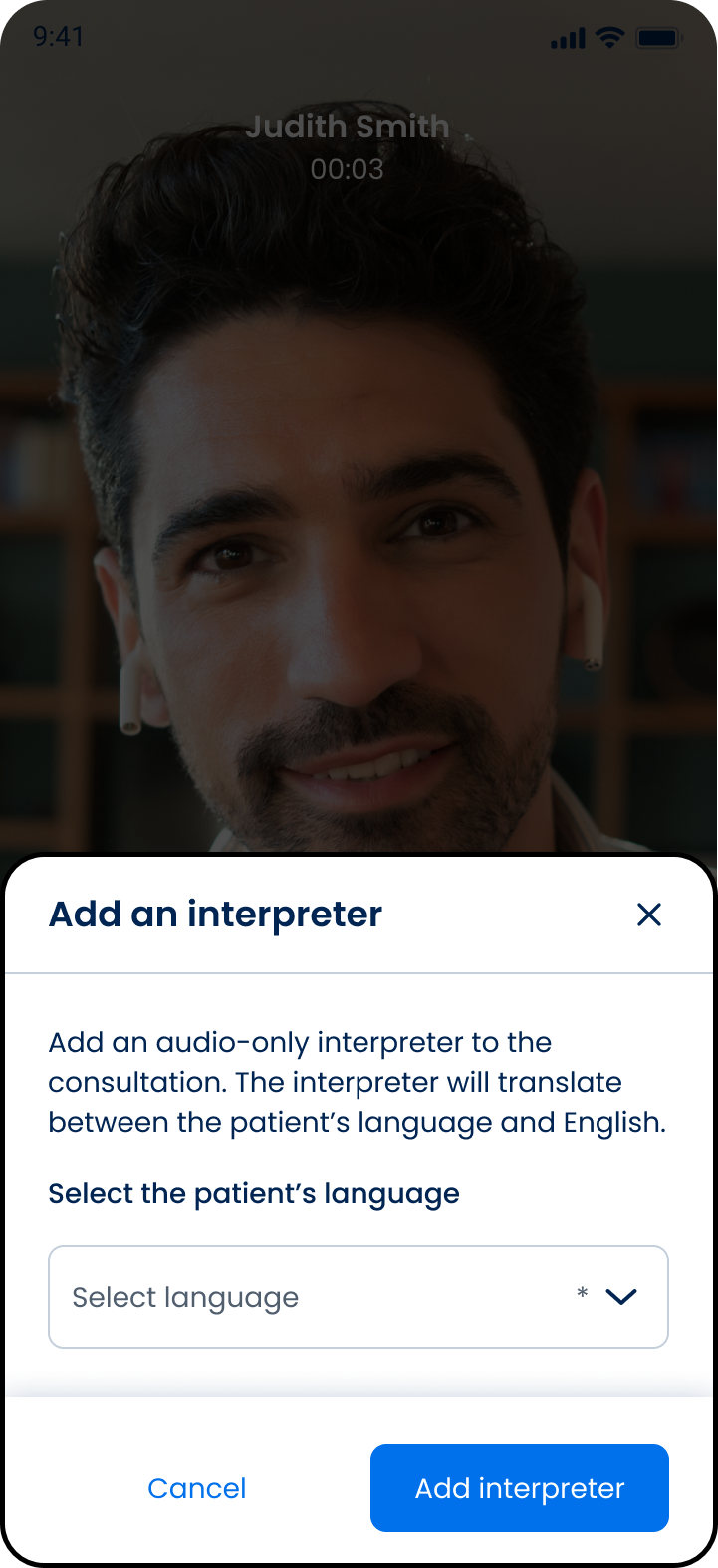
This screen includes:
| # | Element | Description |
|---|---|---|
| 1 | Instructions | Explain how to request an interpreter |
| 2 | Language selector | Selects the interpreter language |
| 3 | Add interpreter action | Submits the interpreter request |
| 4 | Close action | Dismisses the dialog |
Workflow
- Open an active video consultation.
- Select the interpreter action.
- Call
PUT /api/v3/appointments/{appointment-id}/video-room/interpreter. - Display the Invite Interpreter dialog.
- Select an interpreter language.
- Select Add interpreter.
- Call
POST /api/v3/appointments/{appointment-id}/video-room/interpreter/invite. - Add the interpreter to the consultation.
Validations
| Scenario | App behavior | SDK output |
|---|---|---|
| No active consultation | Hide the interpreter action | state = unavailable |
| No language selected | Disable Add interpreter | state = invalid |
| Valid language selected | Enable Add interpreter | state = valid |
| Interpreter already active | Block another request | state = unavailable |
| Session is invalid | Reject the request | state = unauthenticated |
| Request fails | Preserve the current consultation | state = error |
Actions
| Scenario | App behavior | SDK output |
|---|---|---|
| Interpreter action selected | Display the interpreter dialog | Page object |
| Language selected | Update the selected language | language = updated |
| Add interpreter selected | Submit the interpreter request | POST request |
| Interpreter joins | Update consultation participants | state = connected |
| Close selected | Dismiss the dialog | Close event |
Endpoint Resources
Interpreter
PUT
v3/appointments/{appointment-id}/video-room/interpreter/language
Displays the Invite Interpreter dialog for the specified video consultation.
Request Interpreter
POST
v3/appointments/{appointment-id}/video-room/interpreter
Invites an audio-only interpreter to the active video consultation in the selected language