Technical Issues
The Technical Issues feature allows reporting audio, video, or connectivity problems during an active video session.
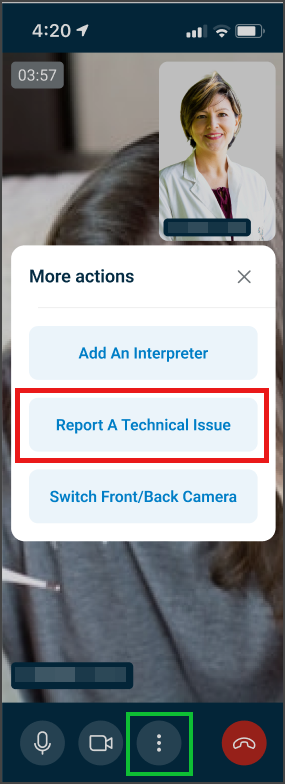
This screen includes
- More actions menu
- Report a Technical Issue option
- Close control
- Related Actions
- Add Interpreter
- Switch Camera
Workflow
This flow starts during an active video session.
- Open the More actions menu.
- Select Report a Technical Issue.
- Select issue category.
- Submit report.
Validations
These rules determine feature availability.
| Scenario | App behavior | SDK output |
|---|---|---|
| No active session. | Hide More actions menu. | No menu state. |
| Active session. | Enable issue reporting. | Menu state available. |
| Invalid or empty report. | Block submission. | Validation error. |
| Valid report submitted. | Accept submission. | Issue submission request created. |
Actions
| Scenario | App behavior | SDK output |
|---|---|---|
| Menu opened. | Display available actions. | Menu state active. |
| Issue reporting initiated. | Open reporting dialog. | Issue dialog state. |
| Issue submission completed. | Close dialog and log issue. | Issue event emitted. |
| Dialog dismissed. | Close without submission. | No state change. |
| Menu dismissed. | Remove menu from view. | Menu state cleared. |
Endpoint Resources
Video Call Issues
PUT
/appointments/{appointment-id}/issue
Displays the technical issue reporting dialog for the specified video session.
Report Issue
POST
/appointments/{appointment-id}/video-room/issue/report
Submits a technical issue report for the active consultation.
Internet Quality
POST
/appointments/{appointment-id}/video-room/video-quality
Report video call quality metrics and connection statistics