Menus
Menus provide access to primary destinations and account actions.
The application adapts menu layout based on container type and screen orientation.
Menu layout does not change routing behavior, permission rules, or destination availability.
Unless explicitly stated, the same menu items and behaviors apply across all menu types.
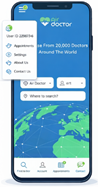
This screen includes
- A navigation menu that provides access to primary app areas.
- Find a doctor, which opens the Home screen and displays as the active state.
- Account, which opens the Account or Log in screen based on authentication state.
- Appointments, which opens the Appointments list.
- Services, which opens the Services screen when available.
- Contact, which opens the Contact screen and displays a notification badge when unread messages exist.
- A visible active state that highlights the selected item.
In WebView mode, the app displays a single navigation menu.
The UI renders either a bottom menu or a top navigation menu based on configuration.
The app does not display multiple menu types at the same time.
Screen Structure
The menu exposes primary navigation areas.
Core Destinations
| Item | Result |
|---|---|
| Find a doctor | Opens the Home screen. |
| Account / Log in | Opens Account when authenticated. Opens Log in when unauthenticated. |
| Appointments | Opens the Appointments list. |
| Services | Opens the Services screen when configured. |
| Contact | Opens the Contact screen. Displays unread badge when applicable. |
| Settings | Opens the Settings screen. Displays only when Services is unavailable. |
| Download App | Opens Download App screen or redirects to store. |
The active destination displays a visible selected state.
Bottom Menu
The bottom menu provides persistent access to primary destinations.
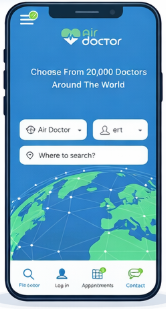
Behavior
| Scenario | Result |
|---|---|
| User selects item | Opens destination and highlights active state. |
| User opens Contact | Bottom menu hides on Contact screen. |
| User exits Contact | Bottom menu restores. |
The bottom menu displays on all main screens except Contact.
Back Navigation
| Item | Back Arrow Behavior |
|---|---|
| Find a doctor | Never displays back arrow. |
| Account / Log in | Displays when bottom menu does not render. |
| Appointments | Displays when bottom menu does not render. |
| Services | Displays when bottom menu does not render. |
| Contact | Always displays. |
| Settings | Not applicable. |
| Download App | Always displays. |
Availability Rules
| Condition | Behavior |
|---|---|
| Services configured | Services displays. |
| Services not configured | Services hides. Settings displays. |
| User unauthenticated | Account opens Log in screen. |
| User authenticated | Account opens Account screen. |
| Unread messages exist | Contact displays notification badge. |
Destination visibility derives from configuration and identity state.
Top Navigation Menu
The top navigation menu changes layout only.
- Routes remain identical.
- Permissions remain identical.
- Destination availability remains identical.
- Screen-level toggling does not occur.
Integrations must not rely on bottom menu presence or icon layout.
Landscape Navigation
Landscape mode adjusts screen real estate.
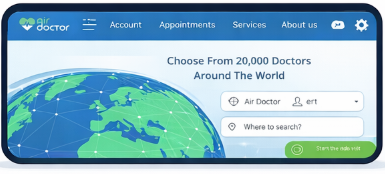
- Destination behavior does not change.
- Active state persists across orientation changes.
- Layout expansion does not require integration changes.
WebView Behavior
WebView mode enforces navigation constraints.
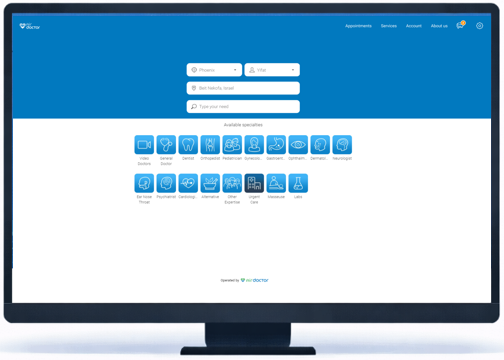
| Constraint | Behavior |
|---|---|
| Single menu container | Only one navigation layout renders. |
| Layout selection | Bottom or top menu renders based on configuration. |
| Simultaneous menus | Not supported. |
| Header overlap prevention | Header adapts to host UI. |
Do not infer navigation availability from menu type in WebView mode.
Actions
| Scenario | App Behavior |
|---|---|
| A menu item is selected | The corresponding destination opens and the active state updates. |
| Account is selected while logged out | The Log in screen appears. |
| Account is selected while logged in | The Account screen appears. |
| Services is not available | The Services item remains hidden and Settings displays instead. |
| Contact opens | The bottom menu hides on the Contact screen. |
Validations
| Scenario | Enforcement |
|---|---|
| No service configuration exists | The Services item does not render. |
| WebView mode is enabled | Only a single navigation layout renders. |
| Authentication state changes | The Account destination resolves to the correct screen. |
| Orientation changes | The active navigation state persists. |
Endpoint Resources
Patient Side Menu
PUT
v3/home/patient/menu
Produces the Patient side menu overlay. Use the returned structure to render navigation entries, account actions, and state indicators.