Filter
Use the Filter screen to define doctor search criteria and refine results.
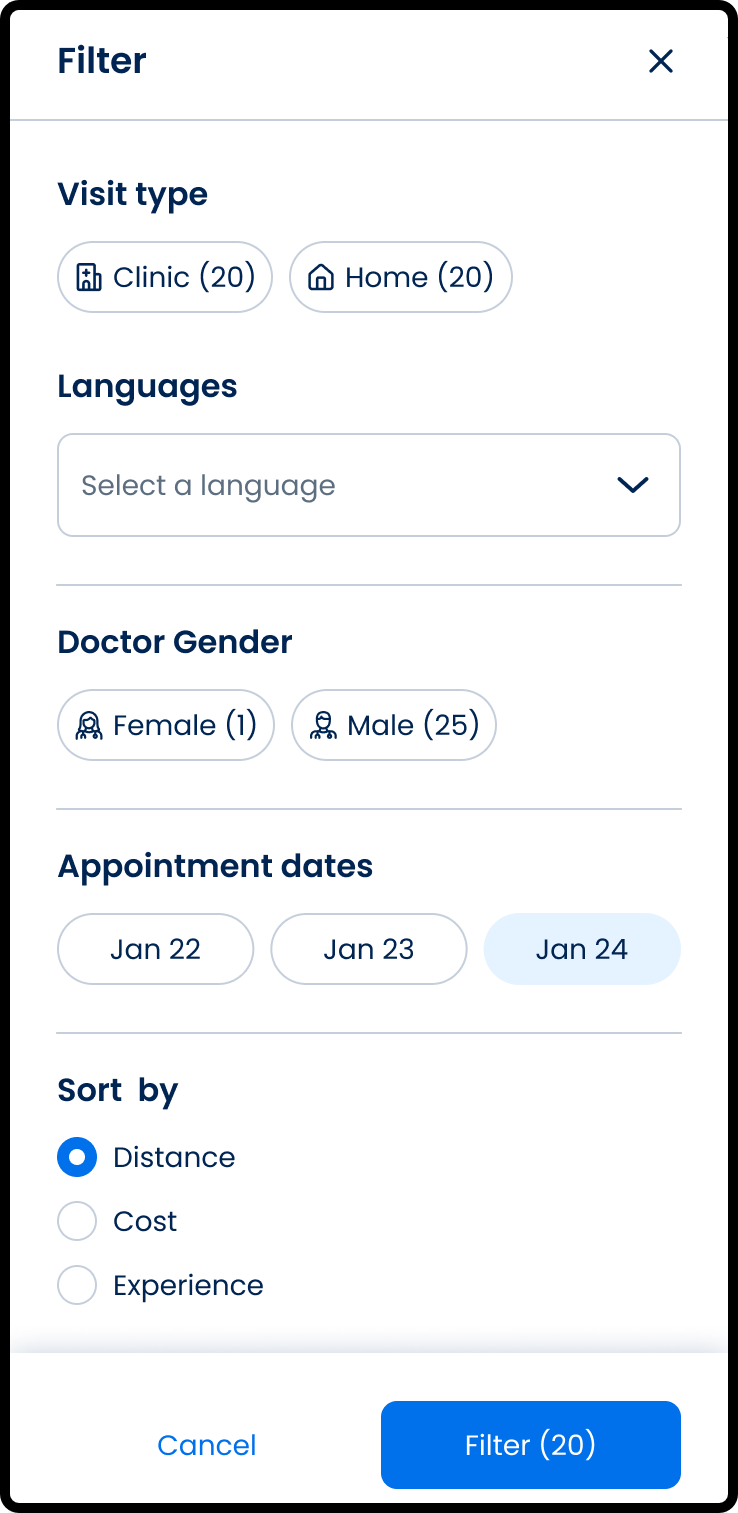
This screen includes:
- Visit type selector
- Visit options (based on availability)
- Prescription filter (video only)
- Language selector
- Date selector
- Sort options
- Apply action
- Reset action
Workflow
Open this screen from: Doctor List → Filter
- Select a visit type.
- Apply optional filters (language, prescription, date).
- Select a sorting option.
- Apply filters to refresh results.
- Reset filters to restore defaults.
Validations
| Scenario | App behavior | SDK output |
|---|---|---|
| No doctors support a visit type | Hide option | Option excluded from response |
| Filter option has no matches | Hide option | Option excluded from response |
| Cost data unavailable | Disable cost sort | Sort flagged unavailable |
| Filter model produces no results | Display empty state | Empty result set |
| Apply action without valid state | Disable apply action | Submission blocked |
Actions
| Scenario | App behavior | SDK output |
|---|---|---|
| Apply filters | Submit filter model | Filtered doctor list returned |
| Reset filters | Clear selections | Default doctor list returned |
| Update filter | Update local model | No network request |
| Change visit type | Refresh available filters | Updated filter configuration |
Endpoint Resources
Doctor Filter
PUT
v3/doctors/filter
Open the doctor list filter screen.
Update Doctor Filter
PATCH
v3/doctors/filter
Update the filter screen content.
Reset Filter
PATCH
v3/doctors/filter/reset
Reset doctors filter to default state.
Update Doctor List by Location Type
PATCH
v3/doctors/update
Update the doctor list after changing primary selection parameters.
Apply Doctor List Filter
POST
v3/doctors/filter
Submit selected filters and sorting, then return the updated doctor list.
Update Doctor Cards Details
PATCH
v3/doctors/update/doctor-card
Refresh card details for a subset of doctors.
Change Doctor List View
PATCH
v3/doctors/view
Switch the doctor list view.