Post Booking Popup
Use Post Wizard to display the appointment request confirmation dialog after a successful appointment request submission.
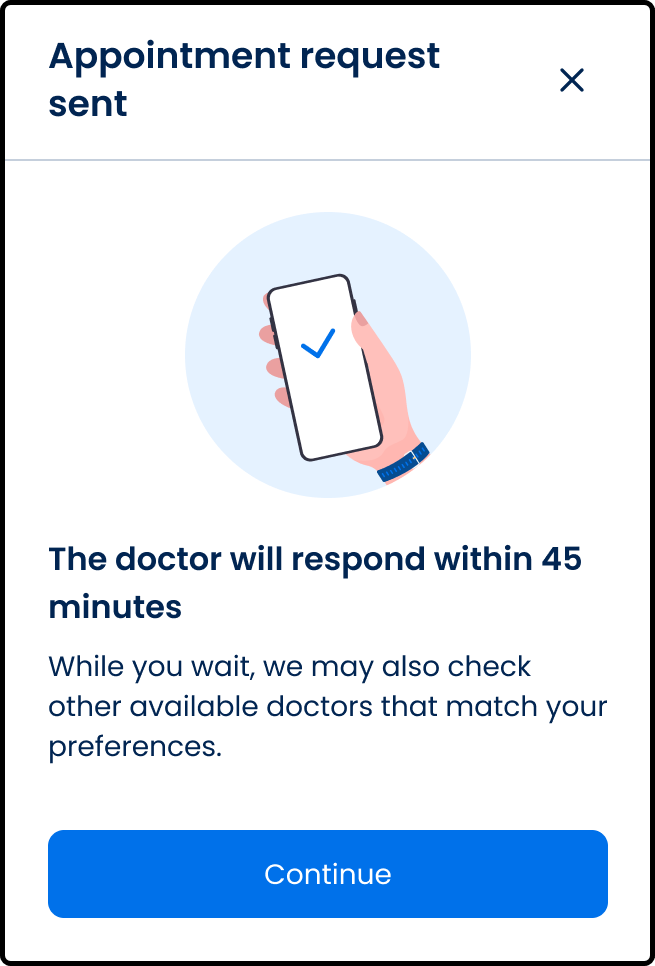
This screen includes:
| # | Element | Description |
|---|---|---|
| 1 | Dialog title | Displays appointment request confirmation |
| 2 | Close action | Dismisses the dialog |
| 3 | Status illustration | Indicates a submitted request state |
| 4 | Response timeframe | Displays the expected doctor response time |
| 5 | Information message | Displays additional booking information |
| 6 | Continue action | Dismisses the dialog and continues the flow |
Workflow
- Submit an appointment request.
- Receive a successful submission response.
- Request the Post Wizard dialog.
- Render the returned confirmation content.
- Select Continue or close the dialog.
- Continue the application flow.
Variants
-
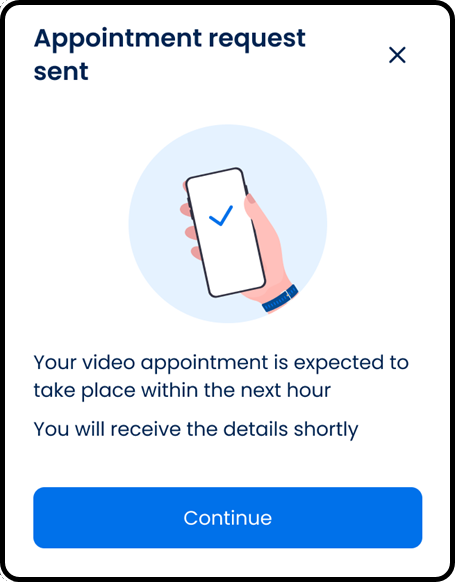
Video appointment request sent: Displays video-specific confirmation content
-
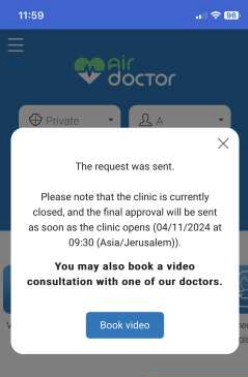
Availability exception: Displays alternative processing content
Validations
| Scenario | App Behavior | SDK Output |
|---|---|---|
| Request submitted successfully | Display confirmation dialog | state = submitted |
| Response timeframe available | Display response estimate | responseTime = available |
| Additional information available | Display information message | message = available |
| Dialog content unavailable | Display fallback confirmation | state = fallback |
| Request rejected | Do not display dialog | state = error |
Actions
| Scenario | App Behavior | SDK Output |
|---|---|---|
| Post Wizard loaded | Render confirmation dialog | PUT /api/v3/wizard/post-wizard |
| Continue selected | Dismiss dialog | state = dismissed |
| Close selected | Dismiss dialog | state = dismissed |
| Dialog dismissed | Continue application flow | navigation = continue |
Endpoint Resources
Post Wizard Popup
PUT
v3/appointments/book/info/success
Returns a post-booking popup that summarizes the newly created appointment’s status.