Search Results
Use the Doctor List screen to view available providers based on the selected search criteria.
This screen displays provider availability and supports filtering, view selection, and appointment booking.
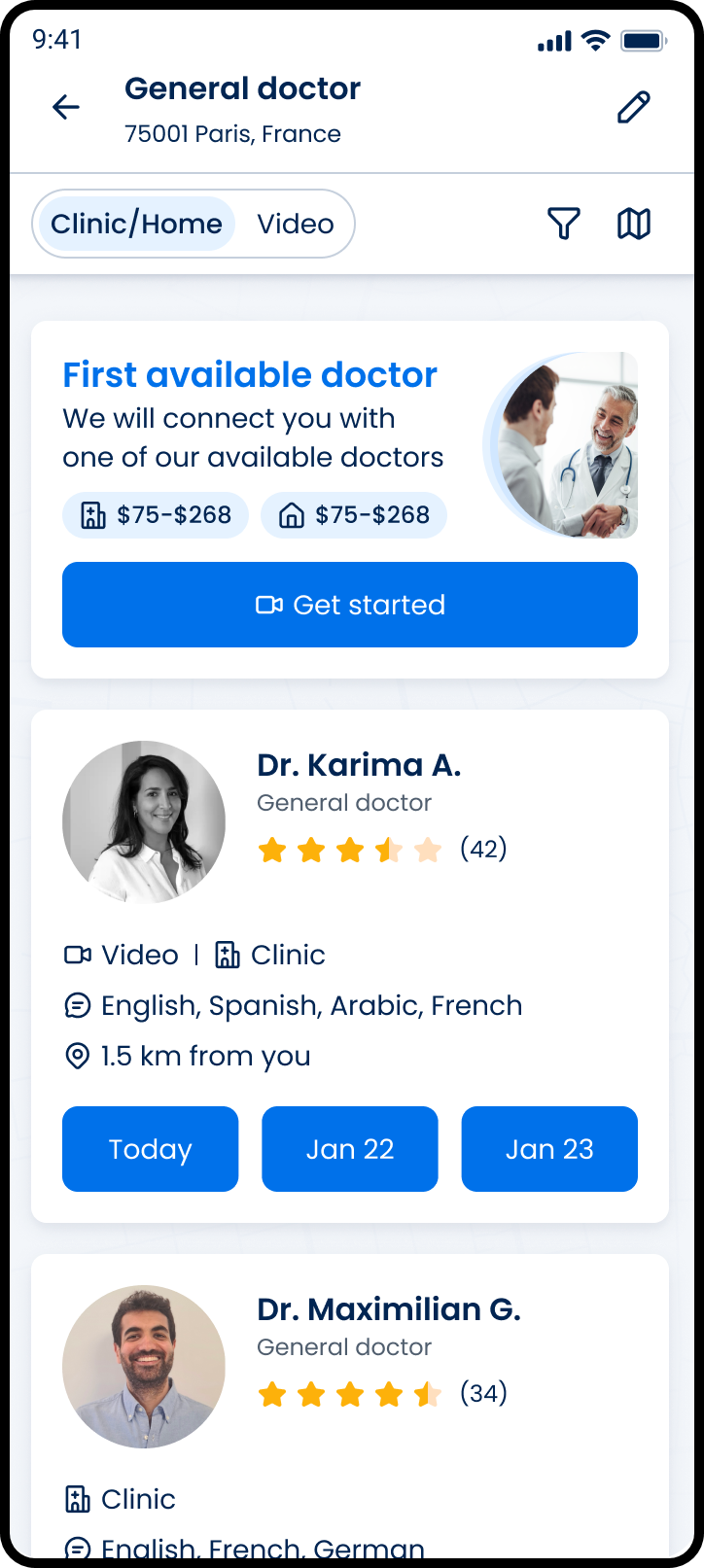
This screen includes:
| # | Element | Description |
|---|---|---|
| 1 | Header | Displays the selected specialty and search location |
| 2 | Back action | Returns to the previous screen |
| 3 | Edit search action | Opens the search edit screen |
| 4 | Visit type selector | Switches between Clinic/Home and Video results |
| 5 | Filter action | Opens the filter screen |
| 6 | View toggle | Switches between list and map views |
| 7 | Featured provider card | Displays the First Available Doctor option |
| 8 | Featured provider pricing | Displays available pricing ranges |
| 9 | Featured provider action | Starts the booking flow |
| 10 | Provider card | Displays provider information returned by the search |
| 11 | Provider profile information | Displays provider name, specialty, rating, and review count |
| 12 | Visit type indicators | Displays supported appointment types |
| 13 | Language information | Displays supported languages |
| 14 | Distance information | Displays the distance from the search location |
| 15 | Availability selector | Displays available booking dates |
Workflow
- Open the Doctor List screen.
- Load matching providers based on the selected search criteria.
- Review available providers.
- Update visit type, filters, or view options when needed.
- Select a provider or available appointment.
- Continue to the next step in the booking flow.
Validations
| Scenario | App Behavior | SDK Output |
|---|---|---|
| Doctor list loaded | Display matching providers | PUT /api/v3/doctors |
| Search criteria updated | Refresh displayed results | PATCH /api/v3/doctors/update |
| View changed | Update the displayed view | PATCH /api/v3/doctors/view |
| Provider card updated | Refresh provider information | PATCH /api/v3/doctors/update/doctor-card |
| Provider highlighted | Highlight the selected provider | PATCH /api/v3/doctors/highlight-card |
| Request fails | Display an error state | status = 405 |
Actions
| Scenario | App Behavior | SDK Output |
|---|---|---|
| Doctor List screen opened | Load providers | PUT /api/v3/doctors |
| Search criteria changed | Refresh results | PATCH /api/v3/doctors/update |
| Provider selected | Update selection state | PATCH /api/v3/doctors/highlight-card |
| View toggle selected | Switch between list and map views | PATCH /api/v3/doctors/view |
| Availability selected | Continue to booking | navigation = booking |
Endpoint Resources
Doctor List
PUT
v3/doctors
Provides the doctor list page with the provided context and criteria.
Update Doctor Card Details
PATCH
v3/doctors/update/doctor-card
Refreshes doctor card details for the selected doctors based on the applied search and filter criteria.
Change Doctor List View
PATCH
v3/doctors/view
Switches the doctor list between map and list views.
Highlight Profile Revision
PATCH
v3/doctors/highlight-card
Highlight a doctor card and corresponding map marker. Clear the previous highlight and set a new one.
Update Doctor List by Location Type
PATCH
v3/doctors/update
Update the doctor list after changing primary selection parameters.