Chat
Use the Chat module to send secure, real-time messages between users and Air Doctor support.
Each thread is linked to a specific appointment and retains the full message history for compliance and auditing.
This screen includes:
- Chat threads grouped by appointment in chronological order.
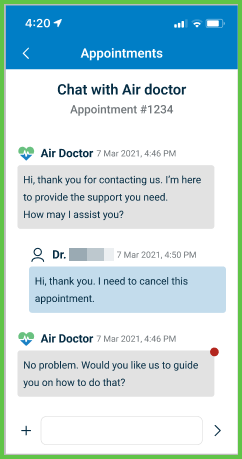
- Sender identity and timestamps for each message.
- Support for text messages and one file attachment per message.
- Unread indicators for inactive threads with new messages.
- Message access restrictions based on appointment status.
- Infinite scroll to load older messages.
- Visual styling that distinguishes incoming and outgoing messages.
- Persistent message history for transparency and audit purposes.
Workflow
-
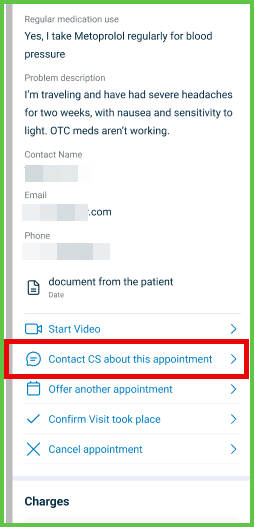
From the navigation menu or an appointment screen, select Chat with support.
-
Type a message in the input field.
The Send icon is disabled until the message is valid. -
Confirm that the message appears in the thread.
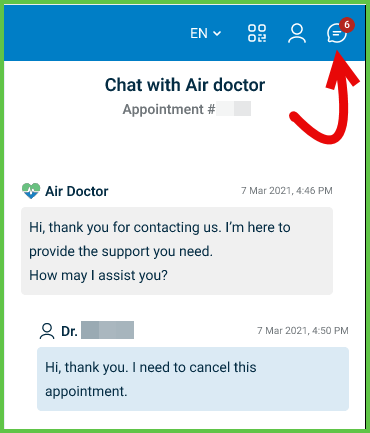
Unread MessagesA red badge on the chat icon indicates unread messages.
Validations
- Message Field: Rejects empty input.
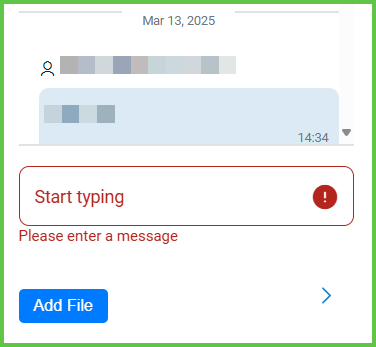
- Attachment Upload: Accepts one file. Validates file type and size.
- Chat Availability: Restricts chat access to active appointments only.
- Load More: Appears only when older messages exist.
- Unread Indicator: Displays for inactive threads with unread messages.
Actions
- Open Chat: Launches the chat panel for the selected appointment.
- Scroll to Load More: Loads older messages dynamically.
- Type Message: Enables the send icon when the input or attachment is valid.
- Attach File: Displays the uploaded filename. Replaces any existing attachment.
- Send Message: Posts the message and clears the input field.
- Unread Divider: Displays a divider when new messages arrive during inactivity.
- Close Chat: Dismisses the chat window and marks the conversation as read.
Endpoint Resources
PUT
Chat
/messages/user-chat
Returns the secure chat interface for a specific appointment or general support. Mobile opens as full screen; desktop displays as an embedded panel or floating window
| Variant | Behavior | Example |
|---|---|---|
| Mobile | Opens as a full-screen interface. User can type and send messages from a dedicated page. | 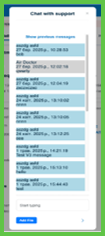 |
| Desktop | Appears embedded in the appointment list or as a floating window near the bottom-right side. | 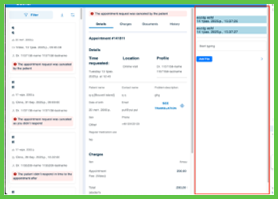 |
UI Element Types
| Level | Reference | Type | Value | Placement |
|---|---|---|---|---|
| D-1 | spacer | Spacer | (for CS Chat on desktop, which is a popup) | |
| D-1 | close | Link | [x] (for CS Chat on desktop, which is a popup) | ~ |
| M-1 | tag | Regular | Appointment #appointment id | |
| M-1 | scroll | Scroller | ||
| 1 | spacer | Spacer | ||
| 2 | load-more | Link | Load more messages... | ^ |
| 2 | incoming-{messageId} | Group | 90% | |
| 3 | attachment | Viewer | Attachment, if present | |
| 2 | new-message-line | Line | ||
| 2 | new-message | Caption | New messages | ~ |
| 2 | new-message-line | Line | ~ | |
| 2 | spacer | Spacer | 10% | |
| 2 | outgoing-{messageId} | Group | ~90% | |
| 3 | attachment | Viewer | Attachment, if present | |
| 2 | newer-messages-marker | Spacer | (invisible; newer messages marker) | |
| 1 | line | Line | ||
| 1 | content | Edit | Start typing | |
| 1 | upload | Upload | (maximum one file) | |
| 1 | send | Link | [>] |
Get Previous Messages
PATCH
/messages/load-more
Retrieves older messages in the chat thread after the user selects Show previous messages. The update preserves the current scroll position.

Update Chat
PATCH
/messages/update
Displays new messages in the active chat thread immediately after they are sent or received. The update preserves conversation state and scroll position.

Save Message
POST
/messages/send-message
Uploads a file, such as a PDF or image, to a chat thread. The message is always linked to a specific appointment.
Parameters
| Name | Type | Required | Description |
|---|---|---|---|
content | String | Yes | Message body text |
appointment-id | int | Yes | Appointment ID for associating the message |
file | File | Yes | File attachment, such as PDF, image, or document |
Errors
| Code | Description |
|---|---|
FIELDS_VALIDATION_ERROR | One or more input fields are missing or invalid |