Log in
Use the Log in screen to authenticate a user, create an active session, and present MFA when the account requires extra verification.
This screen defines the main entry point to the Air Doctor App and supports secure access control for all integration levels.
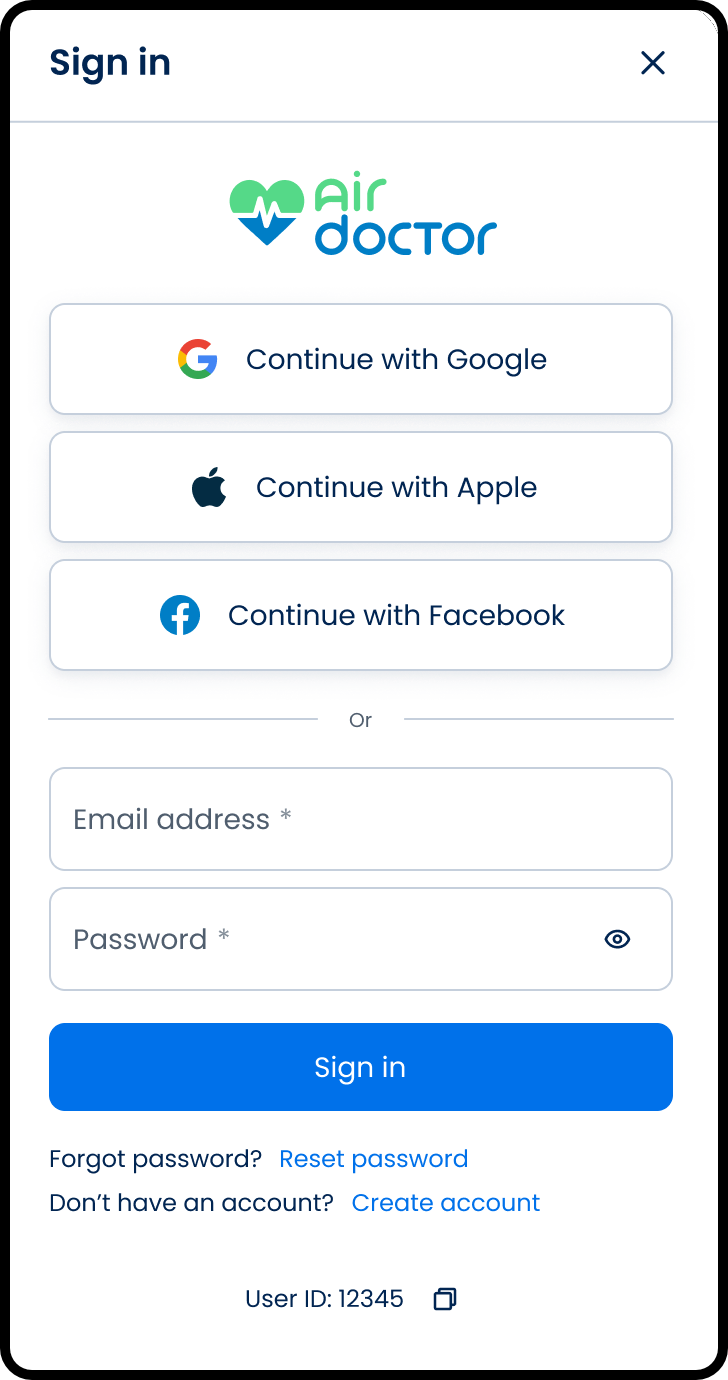
This screen includes:
-
Social sign-in options
- Continue with Google
- Continue with Apple
- Continue with Facebook
-
Email field - Required input for account email.
-
Password field
- Required input for account password.
- Includes visibility toggle.
-
Sign in button - Submits credentials.
-
Forgot password link - Navigates to the Reset Password screen.
-
Create account link - Navigates to the account registration flow.
-
User ID label
- Displays the user identifier.
- Supports copy to clipboard.
Workflow
This flow starts when the user opens the log in screen.
Primary Flow
- Enter email and password.
- Select Log in.
- Access the application.
Conditional Flow
If MFA is required:
- Enter verification code.
- Select Log in.
- Access the application.
Navigation After Login
Navigation depends on the integration level:
- Levels 1–2: Navigate to Air Doctor screens.
- Levels 3–4: Host app controls navigation entry points.
- Levels 5–6: Host app controls routing after login
Validation
| Scenario | App behavior | SDK output |
|---|---|---|
| Email or password missing. | Block submission. Highlight fields. | Validation error. |
| Email not registered. | Display unknown account message. | Unknown user error. |
| Invalid credentials. | Display error message. | INVALID_CREDENTIALS. |
| MFA required but missing. | Prompt for verification code. | MFA_REQUIRED. |
| MFA code invalid. | Display error message. | INVALID_CREDENTIALS. |
| Reset link expired. | Display expiration message. | Expired token error. |
Actions
Authentication
| Scenario | App behavior | SDK output |
|---|---|---|
| Valid credentials submitted. | Start session. Hide form. | Return session token and user context. |
| MFA required. | Display MFA input. | Return MFA requirement state. |
Session Control
| Scenario | App behavior | SDK output |
|---|---|---|
logout() called. | Clear session. Show log in screen. | Emit onLogout. |
| Session expired. | Show log in screen. | Emit onSessionExpired. |
Endpoint Resources
Displays the Login Screen
PUT
v3/account/login
This endpoint returns the login screen configuration and the current session state.
Integrators can override labels and colors with SDK configuration keys:
ui.login.button, ui.mfa.label, ui.error.invalidCredentials, and theme.primaryColor.
UI Element Types
| Level | Reference | Type | Value | Placement |
|---|---|---|---|---|
| 1 | change-language | Toolbar | [Change language] | — |
| 1 | logo | Illustration | [AirDr Logo] | ^100 |
| 1 | log-message | Section | Please log in to continue | ^ |
| 1 | email | Email address | — | |
| 1 | password | Password | Password | — |
| 1 | mfa | Integer | Authentication code | — |
| 1 | login | Button | Log in | — |
| 1 | spaser | Spacer | — | — |
| 1 | reset-password | Link | Forgot your password? Click here to reset | ^ |
Affiliate Login Screen
PUT
/v3/account/login/affiliate
Displays the affiliate login screen.
Login
POST
v3/account/login
This endpoint authenticates the user with credentials. If the account has MFA enabled, include a verification code.
Social Login (Patient only)
POST
v3/account/login/social
This endpoint authenticates a user through a supported social login provider.
The SDK creates a valid session when the social provider token is valid.
Submit Email
PATCH
v3/account/login/email
Submits the email for validation and determines the next authentication step.
On Email Change
PATCH
v3/account/login/email/on-change
Called on email input change to clear an existing email field error and optionally update UI state.
The response body follows the Patch Response Format and applies updates to the open page.