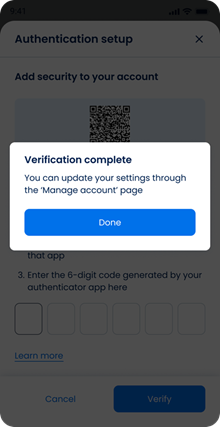
Enable MFA
Use the Authentication Setup screen to enable time-based one-time password (TOTP) authentication for an authenticated account.

This screen includes:
| # | Element | Description |
|---|---|---|
| 1 | Modal title | Displays Authentication setup |
| 2 | Close action | Dismisses the setup modal |
| 3 | Setup heading | Explains that authentication setup improves account security |
| 4 | QR code | Used to add the account to an authenticator app |
| 5 | Secret key | Manual setup key for authenticator apps |
| 6 | Copy action | Copies the secret key |
| 7 | Setup instructions | Lists the steps to install an authenticator app, scan the QR code, and enter the generated code |
| 8 | Verification code field | Required input for the 6-digit authenticator code |
| 9 | Learn more link | Opens additional MFA information |
| 10 | Cancel action | Closes setup without enabling MFA |
| 11 | Verify action | Submits the verification code |
MFA Interaction Flow
+----------------+       +--------------------+       +---------------------+
|     User       |       | Authenticator App  |       | Air Doctor Backend  |
+----------------+       +--------------------+       +---------------------+
        |                         |                             |
        | Open Setup MFA Screen   |                             |
        |------------------------>|                             |
        |                         |                             |
        | Scan QR / Enter Key     |                             |
        |------------------------>|                             |
        |                         | Start TOTP generation       |
        |                         |---------------------------->|
        |                         |                             |
        | Enter Code              |                             |
        |------------------------>|                             |
        |                         | Validate Code               |
        |                         |---------------------------->|
        |                         |                             |
        | Success Banner & Redirect                             |
Workflow
- Open Account.
- Select Edit account.
- Select Security–2 step verification.
- Scan the QR code or enter the secret key in an authenticator app.
- Enter the 6-digit verification code.
- Select Verify.
- Return to Edit account after MFA enables.
Validations
| Scenario | App Behavior | SDK Output |
|---|---|---|
| Code missing or invalid format | Disable Verify and show field error | validation = invalid |
| Code expired or incorrect | Display inline error | error = invalid_totp |
| Secret registration fails | Display error state | error = registration_failed |
| Request in progress | Show loading state | state = loading |
| MFA activation succeeds | Complete setup | mfa = enabled |
Actions
| Scenario | App Behavior | SDK Output |
|---|---|---|
| Screen opened | Load QR code and secret key | MFA setup data returned |
| Secret key copied | Copy secret key | Copy event |
| Code entered | Update verification code state | code = updated |
| Verify selected | Submit verification code | MFA enable request triggered |
| MFA enabled | Return to Edit Account | mfa = enabled |
| Cancel selected | Close setup without changes | No state change |
| Close selected | Dismiss setup modal | No state change |
Endpoint Resources
Authentication Enabled
PUT
v3/account/mfa/enable
Returns the Authentication setup screen for enabling MFA. The response includes the setup UI, QR code, secret key, and verification code input state.

UI Element Types
| Level | Reference | Type | Value |
|---|---|---|---|
| 1 | verification | Regular | Additional verification is available |
| 1 | scan-qr | Regular | First, scan this QR code with your authenticator app. |
| 1 | install-app | Regular | You'll need to install an authenticator app, such as Authy or Google Authenticator. |
| 1 | qr-code | Illustration | [QR code] |
| 1 | enter-key | Regular | or enter key |
| 1 | secret | Link | [explicit code] |
| 1 | enter-code | Regular | Next, enter the 6-digit code generated by your authenticator app here. |
| 1 | mfa | Integer | Verification code |
| 1 | verify | Button | Verify |
| 1 | learn-more | Link | Learn more |
Verify Authentication Code
POST
v3/account/mfa/enable
Verifies the provided MFA code with the secret to enable multi-factor authentication.