Home Screen
Use the Home screen to welcome the doctor after a successful signin.
This screen shows the doctor’s name, current status, and navigation options to start key workflows.
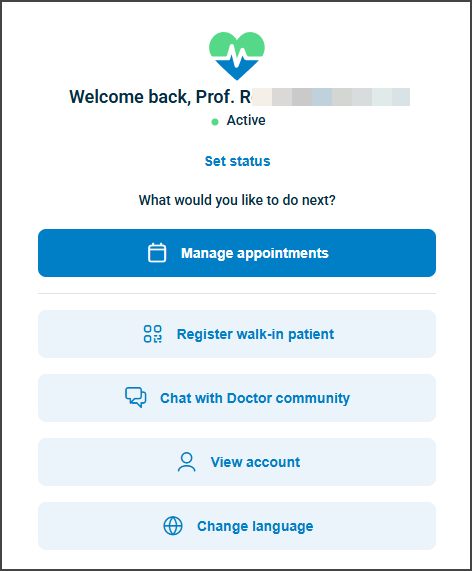
This screen includes:
- A personalized welcome message (for example, “Welcome back, Prof. John Doe”).
- A live status indicator (for example, Active) with a link to Set status.
- A prompt: What would you like to do next?
- Navigation options:
- Manage appointments (primary action).
- Register walk-in patient.
- Chat with Doctor community.
- View account.
- Change language.
In the desktop appointments view, the Home screen is different from the Welcome Screen.
The Welcome Screen is a static placeholder in the right pane when no appointment is selected. The Home Screen is a full interactive menu that appears immediately after signin.
Workflow
This sequence describes how the doctor uses the Home screen after signin.
- The doctor signs in with valid credentials and MFA when required.
→ See Log In and MFA Setup. - After signin, the Home screen appears.
- The doctor selects a navigation option such as Manage appointments, View account, or Change language.
Overview of post-signin flow (desktop)
[Log in]
    │
    ├─► [Home Screen]  – personalized dashboard, status, actions
    │         │
    │         └─► Select **Manage appointments**
    │
    └─► [Appointment List]
              │
              ├─ No selection → [Welcome] (right pane placeholder)
              │
              └─ Select appointment → [Appointment Details] (right pane)
Validations
These scenarios describe how the app validates access to the Home screen.
| Scenario | App Behavior | SDK Output |
|---|---|---|
| No authenticated session exists. | The app does not display the Home screen and displays the Signin screen instead. | Exposes an unauthenticated state. |
| The session is active and the user is a doctor. | The app displays the Home screen with personalized content. | Returns the page object for the doctor’s home profile. |
| The doctor navigates directly to another protected screen without a valid session. | The app blocks access and displays the Signin screen. | Emits onSessionExpired when the session is no longer valid. |
| The backend returns an invalid or incomplete page object. | The app displays an error or fallback screen instead of the Home screen. | Returns a schema validation error. |
Actions
These scenarios describe how the app uses the Home screen and what integrators can expect from the SDK.
| Scenario | App Behavior | SDK Output | Integration Notes |
|---|---|---|---|
| An authenticated doctor completes signin on desktop. | The app displays the Home screen with status and navigation tiles. | Returns the home profile page object. | Levels 1–2: Air Doctor controls navigation. Levels 3–6: The host app can override the next screen after signin. |
| The doctor selects Manage appointments. | The app navigates to the Appointment List. | Emits a navigation event, if enabled. | Partners can listen for navigation events at Levels 3–6. |
| The doctor selects View account. | The app navigates to the account profile details screen. | Returns the account profile page object. | See Doctor Account (Profile Details) for endpoint details. |
| The doctor selects Change language. | The app updates the language setting and reloads content in the selected language. | Updates localization state in the SDK. | Partners can persist language preferences at higher integration levels. |
| The doctor signs out from the Home context. | The app clears session data and displays the Sign in screen. | Emits onLogout. | Levels 5–6: Partners control the sign-out UI and follow-up flows. |
Endpoint Resources
Home Screen (Doctor)
PUT
/profile/home
Produces the Home Screen for the doctor profile.
Returns a structured page that follows the internal Put Response Format and defines all visible elements on the doctor’s Home Screen.