Account
The Account screen shows the authenticated user’s profile.
This screen appears only in an authenticated state and exposes profile details, status controls, language preferences, and administrative fields when applicable. Availability of UI sections depends on the integration level that the host app uses.
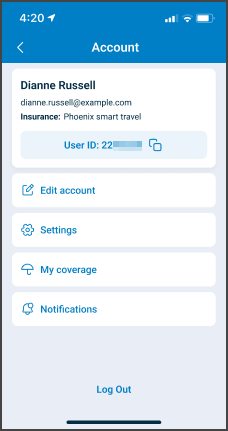
This screen includes:
- Profile Header
- Full Name - Displays the user’s name.
- Optional - Display the account profile image retrieved from the connected identity provider (Google, Apple, or Facebook) when available.
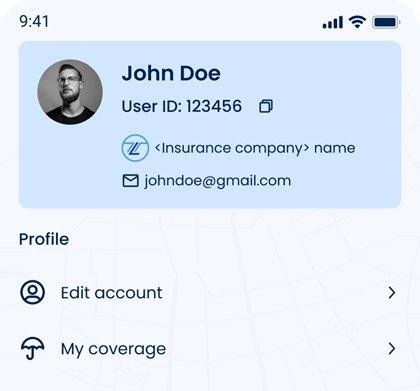
- User ID - Unique identifier for the user. Read-only.
- Insurance Provider - Displays the active insurance company.
- Email Address - Displays the user email. Read-only. Profile Actions
- Edit account - Opens the account editing screen where profile details can change.
- My coverage - Opens the coverage management screen.
- Notification - Opens notification settings.
- Settings
- Languages - Opens language selection. Displays the currently selected language.
- Currency - Opens currency settings. Displays the active currency.
- Distance unit - Selector for km or mile units.
- High contrast - Accessibility toggle for high-contrast display.
- Additional Options
- About Air-doctor - Opens application information.
- Logout - Ends the active user session.
- Navigation
- Bottom navigation bar provides access to:
- Search
- Appointments
- Messages
- Account
- More options
- Bottom navigation bar provides access to:
Workflow
- From the Home screen, select Account.
- Review profile details in the read-only fields.
- To change language preference, to adjust language preferences.
- To update name, language, or profile metadata, select Edit Account.
😷 Doctors only
To change availability or disable appointment intake, select Set Status.
Validations
- Blocks access without a valid session.
- Prevents changes to
User IDandEmail Address.
| Scenario | App Behavior | SDK Output |
|---|---|---|
| No authenticated session exists. | Displays the login screen or blocks access. | Returns an unauthenticated state. |
User attempts to modify read-only fields (User ID, Email Address). | Rejects changes and prevents edits. | Returns a validation error that indicates immutable fields. |
The Account screen always requires an authenticated session.
Actions
Actions vary by integration level.
| Scenario | App Behavior | SDK Output |
|---|---|---|
| Account screen loads in an authenticated state. | Display user metadata from the session context. | Returns user profile with ID, name, email, and status. |
| User selects Edit Account. | Opens the Edit Account screen. | Returns profile details for editing. |
| User selects Change Language. | Opens the Language Selection screen. | Returns current language settings. |
| User selects Set Status. | Opens availability controls and applies updates. | Returns updated status and permission information. |
| User selects Logout. | Ends the active session and displays the login screen. | Emits onLogout and clears session tokens. |
Endpoint Resources
Account Details
PUT
v3/account/details
Returns the authenticated user’s profile, including name, user ID, email address, and status fields. For users with administrative permissions, returns extended status controls.
UI Element Types
| Level | Reference | Type | Value | Placement |
|---|---|---|---|---|
| 1 | user-icon | Regular | [Abstract portrait] | ^30% |
| 1 | account-info | Group | ~70% | |
| 2 | full-name | Section | First and last name | |
| 2 | user-id | Link | User ID: user id | |
| 2 | email | Regular | ||
| 2 | status | Regular | Status | |
| 2 | set-status | Link | Set status | ~ |
| 2 | admin-status | Group | Admin doctor settings | Admin only |
| 1 | edit | Link | Edit account | |
| 1 | change-language | Link | Change language | |
| 1 | logout | Link | Logout |