Interpreter
Use the Interpreter confirmation popup to notify the patient that an audio-only interpreter joins the active video consultation at the doctor’s request.
Patient-side screen
This page describes the patient video room. For the doctor video room, see Video Interpreter.
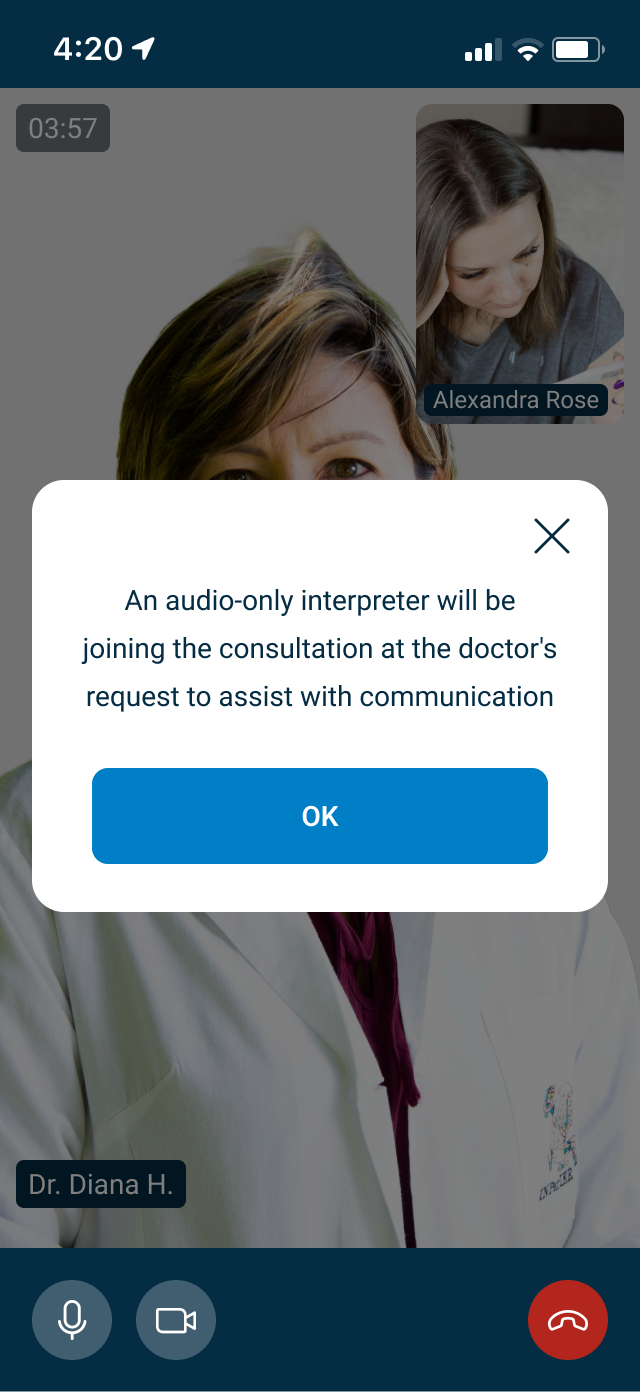
This screen includes:
| # | Element | Description |
|---|---|---|
| 1 | Confirmation message | States that an audio-only interpreter joins the consultation |
| 2 | OK action | Dismisses the popup |
| 3 | Close action | Dismisses the popup |
Workflow
- Open an active video consultation.
- Receive the doctor’s interpreter request.
- Call
PUT /api/v3/appointments/{appointment-id}/video-room/interpreter/confirm. - Display the interpreter confirmation popup.
- Select OK or the close action.
- Continue the consultation.
Validations
| Scenario | App behavior | SDK output |
|---|---|---|
| Video consultation is inactive | Do not display the popup | state = unavailable |
| Interpreter request is confirmed | Display the popup | Page object |
| Request fails | Preserve the current consultation | state = error |
| Session is invalid | Reject the request | state = unauthenticated |
Actions
| Scenario | App behavior | SDK output |
|---|---|---|
| Confirmation received | Display the interpreter notice | Page object |
| OK selected | Dismiss the popup | Close event |
| Close selected | Dismiss the popup | Close event |
Endpoint Resources
Interpreter F2F
PUT
v3/appointments/{appointment-id}/video-room/interpreter/confirm
Returns a confirmation popup after the doctor requests an interpreter for the specified appointment.