Home Screen - Bottom Navigation
Use the Bottom Navigation to switch between primary application destinations.
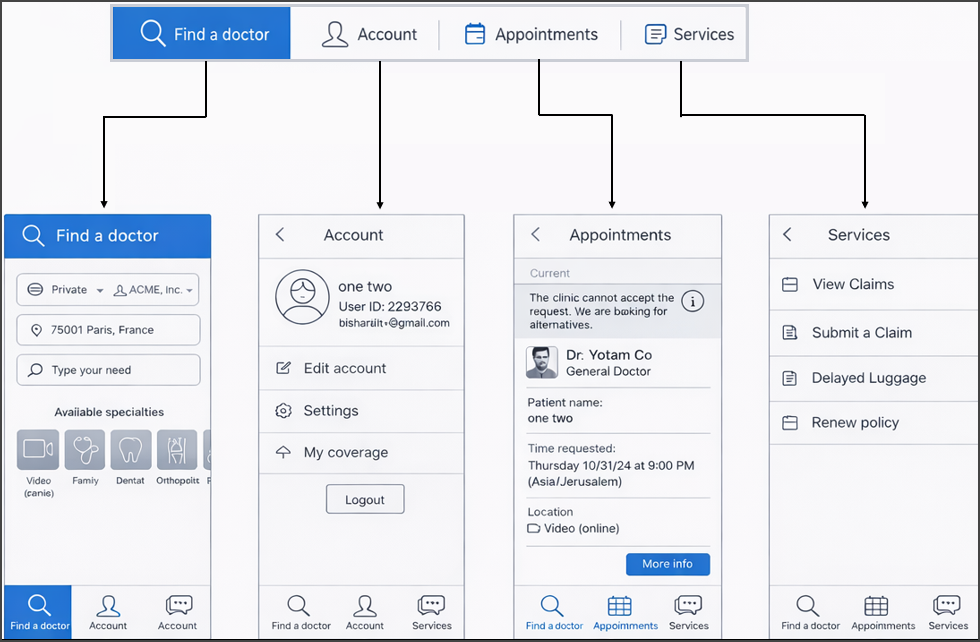
This screen includes:
| # | Element | Description |
|---|---|---|
| 1 | Tab bar | Fixed navigation bar at the bottom of the screen |
| 2 | Home tab | Opens Home and shows label when active |
| 3 | Appointments tab | Opens appointment list |
| 4 | Account tab | Opens account screen |
| 5 | Chat / Support tab | Opens chat or support messages |
| 6 | Selected state | Highlights the active tab with a pill background |
| 7 | Notification indicator | Displays a badge when updates exist |
Workflow
This flow starts when the user interacts with the bottom navigation.
- Select a destination tab.
- Switch to the corresponding screen.
- Update the selected state.
Validations
| Scenario | App Behavior | SDK Output |
|---|---|---|
| Destination requires authentication and no session exists | Show sign-in entry flow | auth = required |
| Destination available | Enable navigation | Navigation ready |
| Destination fails to load | Display error state in destination | Error response |
Actions
| Scenario | App Behavior | SDK Output |
|---|---|---|
| Destination tab selected | Navigate to destination and update active tab | activeRoute = <destination>, activeTab = <destination> |
| Active tab selected | Do not navigate | No route change |
| Tab switch | Reset nested navigation | Nested state cleared |
| Back navigation after tab switch | Navigate within current destination flow | No tab change |