First Available Home
Use First Available Doctor to start automatic doctor matching from the Home screen.
The flow bypasses manual doctor selection and uses the selected visit type, location, coverage context, and availability rules.
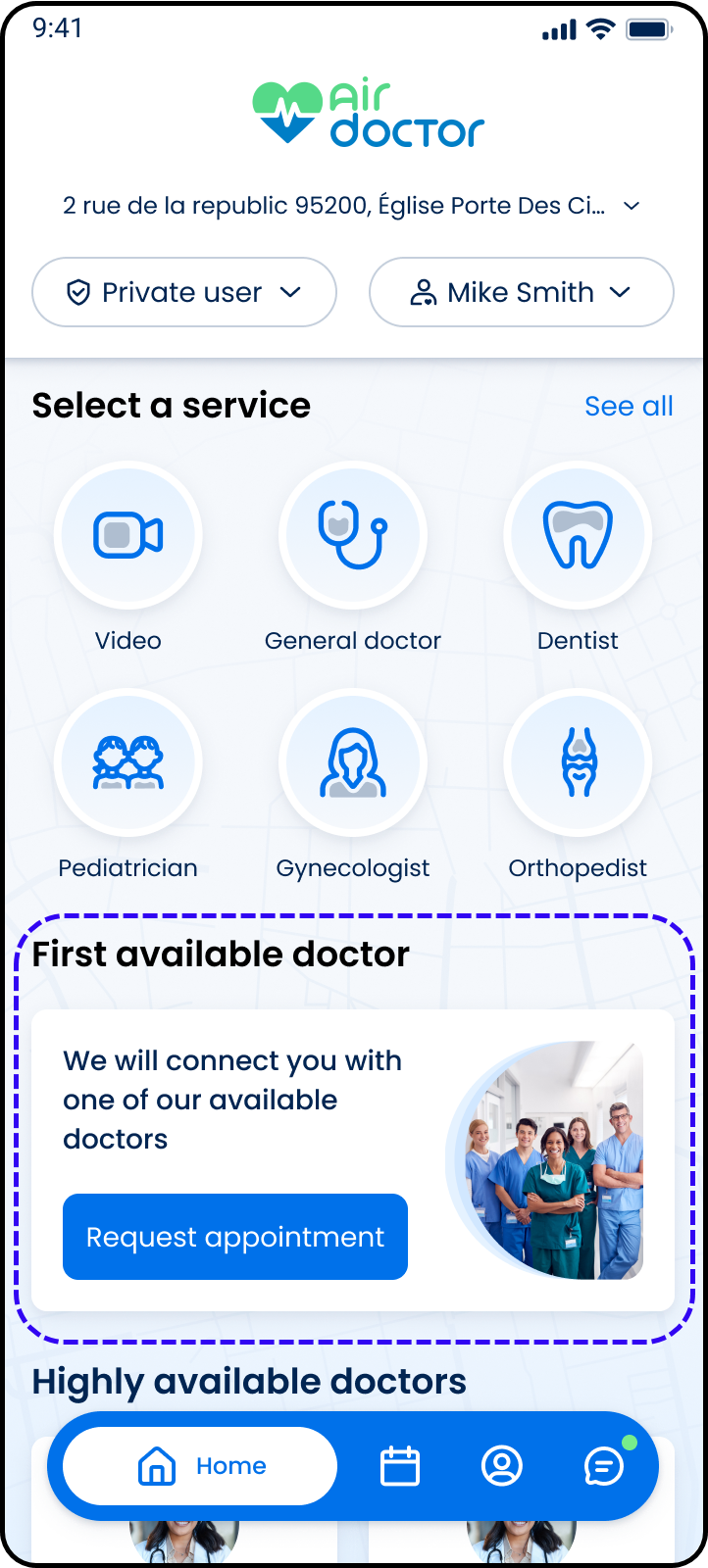
This screen includes:
| # | Element | Description |
|---|---|---|
| 1 | First Available Doctor section | Displays the automatic matching option |
| 2 | Get started action | Starts the first available doctor flow |
| 3 | Visit type context | Uses the selected visit type for matching |
| 4 | Location context | Uses the selected service area for matching |
| 5 | Coverage context | Applies coverage rules when available |
| 6 | Availability state | Determines whether matching can start |
Workflow
- Open the Home screen.
- Select a supported visit type.
- Select First Available Doctor.
- Start automatic doctor matching.
- Continue to the booking flow returned by the Home response
Validations
| Scenario | App Behavior | SDK Output |
|---|---|---|
| User is not authenticated | Block matching | error = unauthorized |
| Visit type missing | Block matching | error = visit_type_required |
| Location missing | Block matching | error = location_required |
| Location unsupported | Disable matching | availability = unsupported |
| Coverage supports automatic scheduling | Bypass manual selection | state = auto_scheduled |
| Matching available | Enable Get started action | matching = available |
| Matching unavailable | Disable Get started action | matching = unavailable |
| Request rejected | Display error state | status = 405 |
Actions
| Scenario | App Behavior | SDK Output |
|---|---|---|
| Get started selected | Start first available doctor flow | PUT /api/v3/home/first-available |
| Visit type changed | Refresh matching eligibility | visitType = updated |
| Location changed | Refresh matching eligibility | location = updated |
| Coverage context changed | Refresh matching eligibility | coverage = updated |
| Request succeeds | Render returned booking flow | state = ready |
| Request fails | Display error state | state = error |
Endpoint Resources
First Available Doctor
PUT
v3/home/first-available
Starts the first available doctor booking flow