Translation Language
Use the Translation Language popup to localize appointment content.
The app opens this popup when the user selects See Translation in Appointment Details. When a translation exists, the app replaces the original content with translated text.
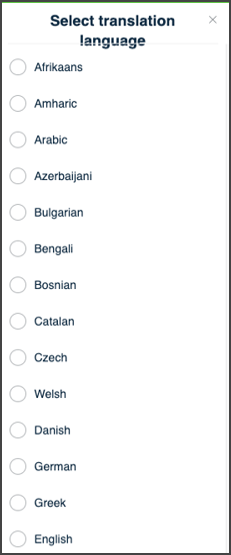
This popup includes:
- A language selector that lists supported languages from platform configuration.
- A Save Changes button that activates only after a language selection.
- A Close (X) button that exits the popup without changes.
- Inline refresh of appointment content after confirmation.
Workflow
The app applies translations only when localized content exists for the appointment.
This sequence describes how a user applies a translation.
- In Appointment Details, select See Translation.
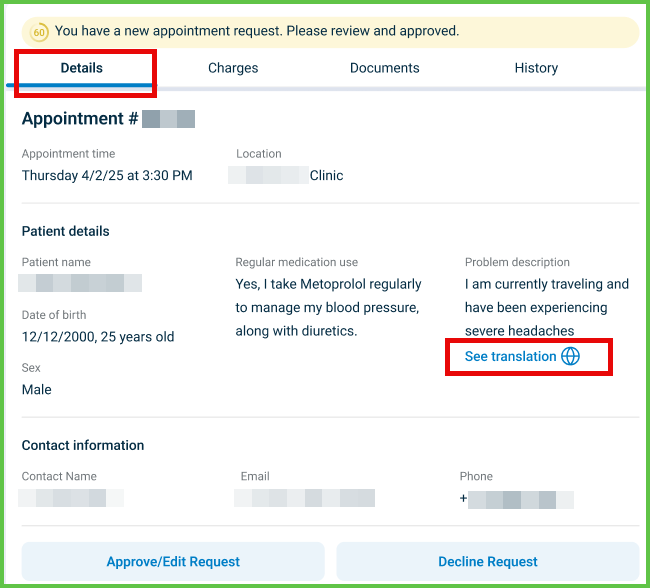
- Review the list of supported languages.
- Select a language.
- Select Save Changes.
- The popup closes.
- The screen refreshes with translated content when available.
- Select Close (X) to exit without changes.
Validations
These rules ensure valid language selection and safe updates.
| Scenario | App behavior |
|---|---|
| No language selected. | Keeps Save Changes disabled. |
| Selected language is unsupported. | Rejects the selection. |
| Language does not exist in configuration. | Prevents submission. |
| Translation does not exist for the appointment. | Displays original content. |
Actions
Popup behavior applies user preferences and updates the view.
| Scenario | App behavior |
|---|---|
| User selects Save Changes. | Sends the selected language to the backend and updates appointment content inline. |
| User selects Close (X). | Cancels the action and preserves the original language. |
Endpoint Resources
Select Translation Language
PUT
/account/translation-language
Displays the translation language selection popup and stores the selected language preference.
UI Element Types
| Level | Reference | Type | Value | Placement |
|---|---|---|---|---|
| 1 | spoken-language~af | Radio | Afrikaans | — |
| 1 | spoken-language~am | Radio | Amharic | — |
| 1 | spoken-language~yue | Radio | Chinese – Cantonese | — |
| 1 | save-changes | Secondary | Save changes | — |
Translate Appointment Content
PATCH
/profile/appointments/{appointment-id}/translate
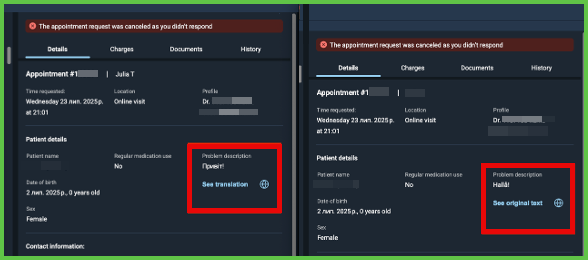
Toggles translated content visibility for the appointment.
Update Translation Language
POST
/account/translation-language
Updates the user spoken language preference for translation services.
Parameters
| Name | Type | Required | Description |
|---|---|---|---|
language | Enum | Yes | Language code for translation. |
Errors
| Code | Description |
|---|---|
WRONG_DATA | The selected language is invalid or unsupported. |