Chat
Use the Chat screen to exchange messages, send attachments, and complete chat-based actions. This screen supports message threads, update views, AI-assisted actions, structured forms, and attachment workflows.
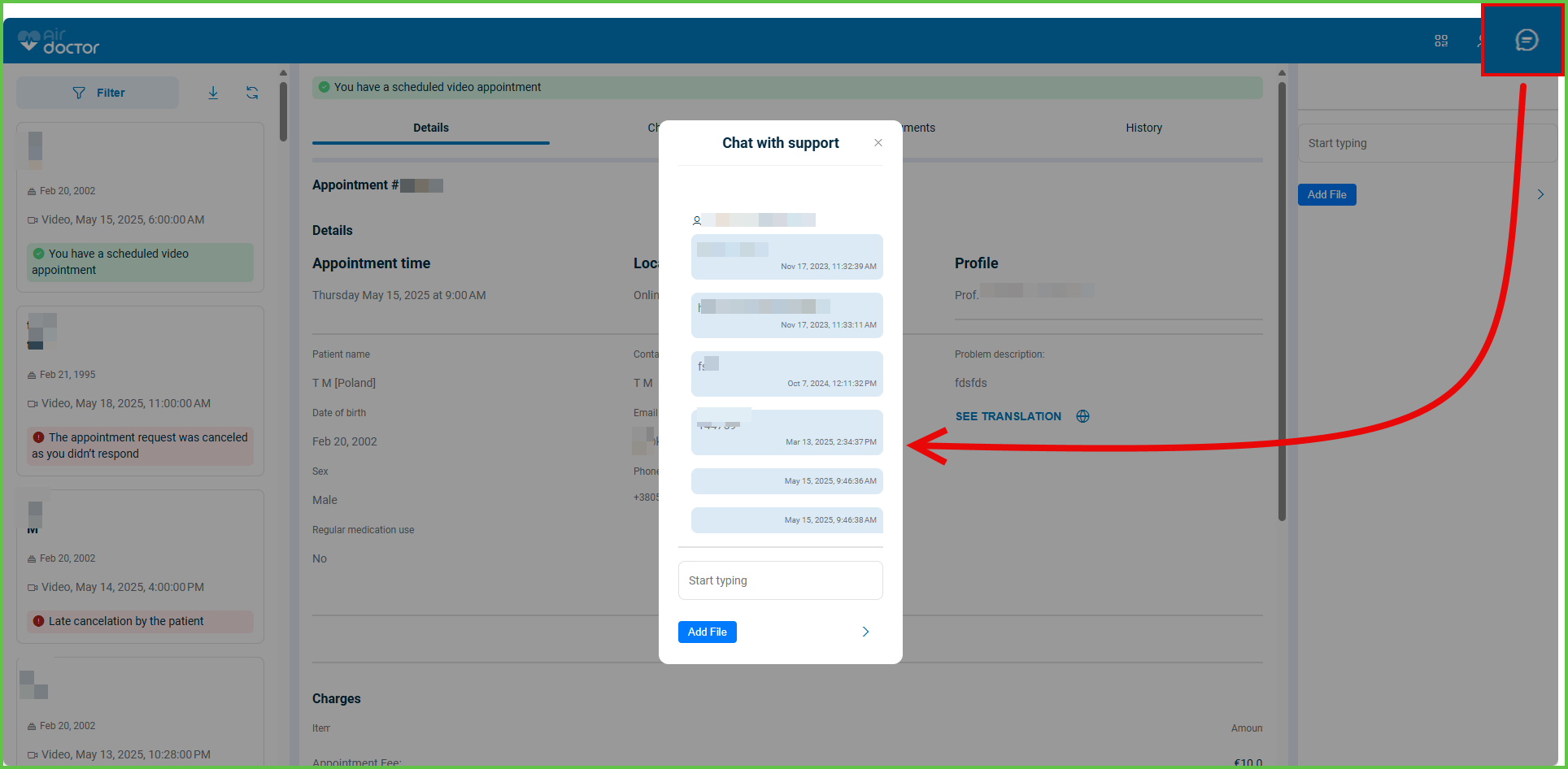
This screen includes:
| # | Element | Description |
|---|---|---|
| 1 | Header | Displays screen title and back navigation |
| 2 | Chat and Updates tabs | Switches between chat and update views |
| 3 | Contact options action | Opens additional support contact options |
| 4 | Message thread | Displays conversation history |
| 5 | Date divider | Groups messages by date |
| 6 | Incoming message | Displays support messages |
| 7 | Outgoing message | Displays user messages |
| 8 | Timestamp | Displays message time |
| 9 | Expand action | Expands collapsed message content |
| 10 | Message input | Updates message content |
| 11 | Attachment action | Uploads one attachment |
| 12 | Send action | Sends the current message |
The chat screen supports AI-assisted interactions through structured forms, predefined actions, and dynamic input layouts.
Available AI capabilities derive from the active chat configuration.
Workflow
- Open the Chat screen.
- Load the active chat mode.
- Load the message thread.
- Enter a message, select an AI action, complete a form, or upload a file.
- Validate the active input.
- Submit the selected action.
- Refresh the message thread.
- Load previous messages when available.
Validations
| Scenario | App Behavior | SDK Output |
|---|---|---|
| Chat loads | Display the active message thread | PUT /api/v3/messages/user-chat |
| Chat mode changes | Reload the selected mode | PATCH /api/v3/messages/change-mode |
| Previous messages available | Display the load previous messages action | PATCH /api/v3/messages/load-more |
| Message content changes | Validate the message state | PATCH /api/v3/messages/send-message/update |
| File selected | Validate the file state | PATCH /api/v3/messages/send-file/update |
| Form layout changes | Reload the active input layout | PATCH /api/v3/messages/switch-form |
| New messages available | Refresh the message thread | PATCH /api/v3/messages/update |
| Request fails | Display an error state | status = 405 |
Actions
| Scenario | App Behavior | SDK Output |
|---|---|---|
| Chat tab selected | Load chat mode | PATCH /api/v3/messages/change-mode |
| Updates tab selected | Load updates mode | PATCH /api/v3/messages/change-mode |
| Previous messages selected | Load older messages | PATCH /api/v3/messages/load-more |
| Attachment action selected | Open the file uploader | PATCH /api/v3/messages/open-uploader |
| Message updated | Update the send state | PATCH /api/v3/messages/send-message/update |
| File selected | Update the file send state | PATCH /api/v3/messages/send-file/update |
| Form layout selected | Switch the active input layout | PATCH /api/v3/messages/switch-form |
| AI action submitted | Send the selected AI action | POST /api/v3/messages/ai-action |
| AI form submitted | Send the completed form | POST /api/v3/messages/send-form |
| Message submitted | Send the message | POST /api/v3/messages/send-message |
| File submitted | Send the attachment | POST /api/v3/messages/send-file |
| Thread updated | Display new messages | PATCH /api/v3/messages/update |
Endpoint Resources
PUT
Chat
v3/messages/user-chat
Returns the chat (general or appointment-specific).
Change Active Mode
PATCH
v3/messages/change-mode
Switches the active chat tab and reloads the messages for the selected mode.
Get Previous Messages
PATCH
v3/messages/load-more
Retrieves older messages in the chat thread after the user selects Show previous messages. The update preserves the current scroll position.
Update Send Message
PATCH
v3/messages/send-message/update
Validates the text input and updates the Send button state as content changes.
Switch Form Layout
PATCH
v3/messages/switch-form
Switches between AI suggest input form and plain text entry.
Update Chat
PATCH
v3/messages/update
Displays new messages in the active chat thread immediately after they are sent or received. The update preserves conversation state and scroll position.
Send Action
POST
v3/messages/ai-action
Sends an AI suggested action in the chat.
Send Form
POST
v3/messages/send-form
Sends the AI suggested form in the chat.
Save Message
POST
v3/messages/send-message
Sends a chat message linked to the active appointment.
Parameters
| Name | Type | Required | Description |
|---|---|---|---|
content | String | Yes | Message body text |
appointment-id | int | Yes | Appointment ID for associating the message |
file | File | Yes | File attachment, such as PDF, image, or document |
Errors
| Code | Description |
|---|---|
FIELDS_VALIDATION_ERROR | One or more input fields are missing or invalid |