Edit Successful
Use the Edit success to confirm that appointment request details were updated. This popup appears after the edit appointment flow saves the updated request details.
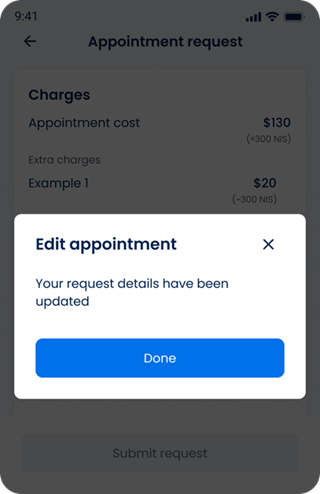
This screen includes:
| # | Element | Description |
|---|---|---|
| 1 | Header | Displays the Edit appointment title |
| 2 | Close action | Dismisses the popup |
| 3 | Status message | Displays appointment request update confirmation |
| 4 | Done action | Closes the popup and returns to the appointment request flow |
| 5 | Modal container | Displays confirmation content and blocks interaction with the underlying screen |
Workflow
- Open the edit appointment flow.
- Update one or more appointment request details.
- Save the updated request details.
- Open the Edit Notice Popup.
- Select Done or the close action.
- Return to the appointment request flow.
Validations
| Scenario | App Behavior | SDK Output |
|---|---|---|
| Appointment update succeeds | Display the confirmation popup | status = 200 |
| Appointment update fails | Do not display the confirmation popup | status = 405 |
| Notice response fails | Display the configured error state | error = request_failed |
| User lacks access | Block popup access | error = unauthorized |
Actions
| Scenario | App Behavior | SDK Output |
|---|---|---|
| Notice popup opens | Display update confirmation | PUT /api/v3/wizard/appointments/update/notice |
| Done selected | Close the popup | navigation = dismiss |
| Close selected | Close the popup | navigation = dismiss |
| Underlying screen selected | Keep the popup open | state = modal_active |
Endpoint Resources
Edit Success
PUT
v3/appointments/{appointment-id}/edit/success
Returns a confirmation popup after the appointment request details are updated.