Reset Password Email Sent
Use Email Sent Confirmation to confirm a password reset request.
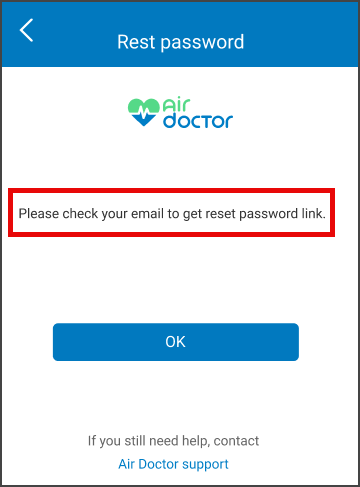
This screen includes:
| # | Element | Description |
|---|---|---|
| 1 | Confirmation modal | Displays the password reset confirmation. |
| 2 | Modal title | Displays Password Reset Sent. |
| 3 | Close action | Closes the modal. |
| 4 | Confirmation icon | Displays the success illustration. |
| 5 | Confirmation message | States that a reset link is sent if the email address is registered. |
| 6 | OK action | Closes the modal. |
| 7 | Background sign-in screen | Shows the sign-in form behind the modal. |
Workflow
- Open the password reset flow from Sign in.
- Enter an email address.
- Submit the password reset request.
- Show the confirmation modal after request success.
- Select OK or the close action to dismiss the modal.
- Check email for the reset link.
Validations
| Scenario | App behavior | SDK output |
|---|---|---|
| Email missing | Block submission | validation = email_required |
| Email invalid | Display validation error | error = invalid_email |
| Email valid | Submit request | state = ready |
| Email not registered | Show the same confirmation modal | state = email_sent |
| Request succeeds | Show confirmation modal | state = email_sent |
| Request fails | Display error state | status = 405 |
Actions
| Scenario | App behavior | SDK output |
|---|---|---|
| Reset password selected | Submit password reset request | POST /api/v3/account/password/reset/request |
| Request succeeds | Load confirmation modal | PUT /api/v3/account/password/reset/request/successful |
| OK selected | Dismiss modal | state = dismissed |
| Close selected | Dismiss modal | state = dismissed |
| Request rejected | Preserve current state | state = unchanged |
Endpoint Resources
Reset Password Email Sent
PUT
v3/account/password/reset/request/successful
Returns the password reset confirmation modal.
Reset Password Link Send
POST
v3/account/password/reset/request
Sends the password reset email request.