Authentication Enabled
Use Enable MFA to link an authenticator app to the user account.
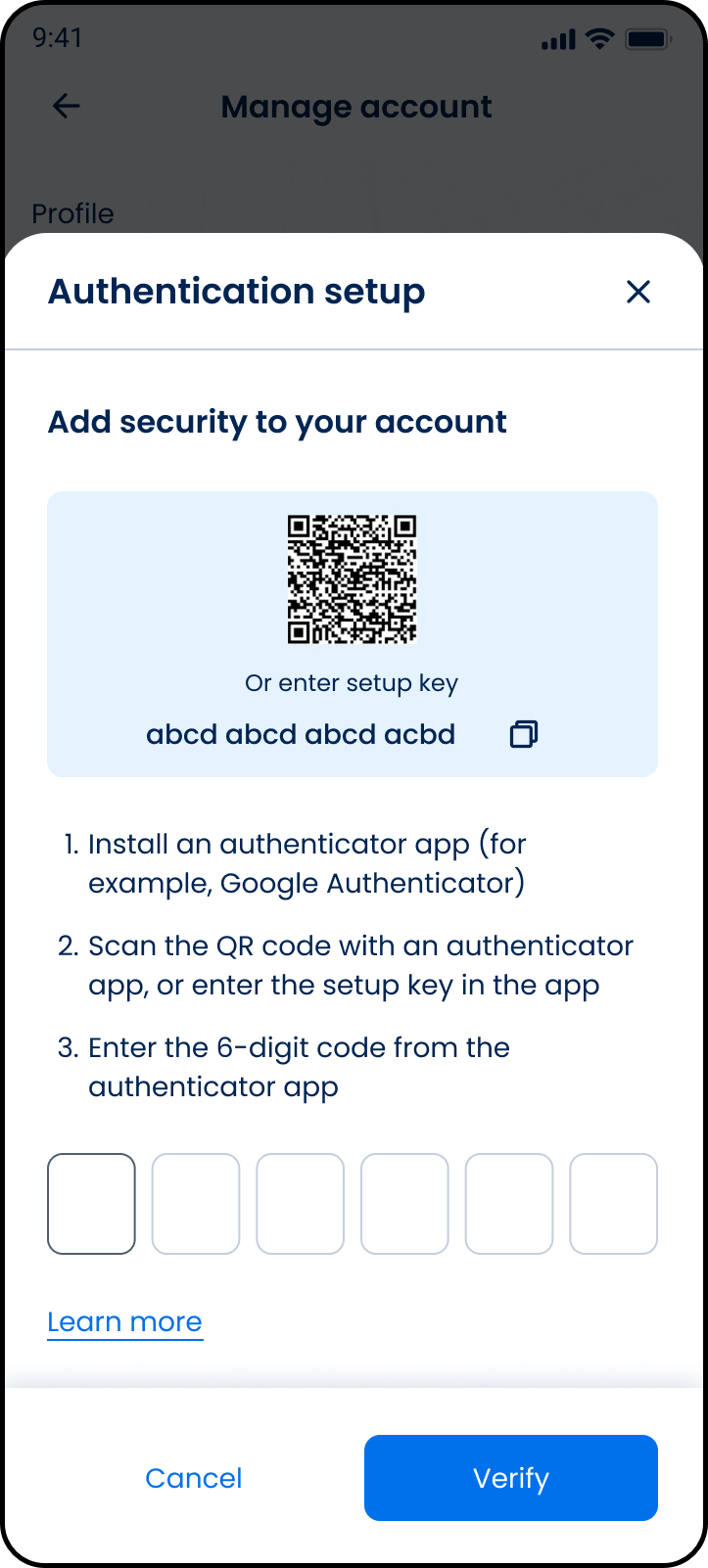
This screen includes:
| # | Element | Description |
|---|---|---|
| 1 | Modal title | Displays Authentication setup. |
| 2 | Close action | Closes the modal. |
| 3 | Setup heading | Displays Add security to your account. |
| 4 | QR code | Links the account to an authenticator app. |
| 5 | Setup key | Provides a manual setup key. |
| 6 | Copy action | Copies the setup key. |
| 7 | Setup instructions | Explains how to install an authenticator app, scan the QR code, and enter the code. |
| 8 | Code input fields | Accept the 6-digit authenticator code. |
| 9 | Learn more link | Opens MFA help content. |
| 10 | Cancel action | Cancels setup. |
| 11 | Verify action | Submits the authenticator code. |
Workflow
- Go to Manage account > Security > Two-step verification.
- Scan the QR code with an authenticator app, or enter the setup key manually.
- Enter the 6-digit code from the authenticator app.
- Select Verify.
- Enable MFA after successful verification.
- Select Cancel or close the modal to exit setup.
Validations
| Scenario | App behavior | SDK output |
|---|---|---|
| Session invalid | Block request | state = unauthenticated |
| MFA already active | Block setup | mfa = enabled |
| Code missing | Disable Verify | validation = code_required |
| Code incomplete | Disable Verify | validation = code_incomplete |
| Code invalid or expired | Display verification error | error = invalid_mfa_code |
| Verification succeeds | Enable MFA | mfa = enabled |
| Request rejected | Display error state | status = 405 |
Actions
| Scenario | App behavior | SDK output |
|---|---|---|
| Screen opens | Load MFA setup screen | PUT /api/v3/account/mfa/enable |
| Setup key copied | Copy setup key | setupKey = copied |
| Code entered | Update code state | mfaCode = updated |
| Verify selected | Submit MFA code | POST /api/v3/account/mfa/enable |
| Verification succeeds | Enable MFA | mfa = enabled |
| Learn more selected | Open MFA help content | navigation = learn_more |
| Cancel selected | Cancel setup | state = cancelled |
| Close selected | Dismiss modal | state = dismissed |
Endpoint Resources
Authentication Enabled
PUT
v3/account/mfa/enable
Returns the MFA setup screen.
UI Element Types
| Level | Reference | Type | Value |
|---|---|---|---|
| 1 | verification | Regular | Additional verification is available |
| 1 | scan-qr | Regular | First, scan this QR code with your authenticator app. |
| 1 | install-app | Regular | You'll need to install an authenticator app, such as Authy or Google Authenticator. |
| 1 | qr-code | Illustration | [QR code] |
| 1 | enter-key | Regular | or enter key |
| 1 | secret | Link | [explicit code] |
| 1 | enter-code | Regular | Next, enter the 6-digit code generated by your authenticator app here. |
| 1 | mfa | Integer | Verification code |
| 1 | verify | Button | Verify |
| 1 | learn-more | Link | Learn more |
Verify Authentication Code
POST
v3/account/mfa/enable
Verifies the authenticator code and enables MFA.