Email Sent Confirmation
Use the Reset Password → Email Sent Confirmation screen to confirm that the password recovery email was sent.
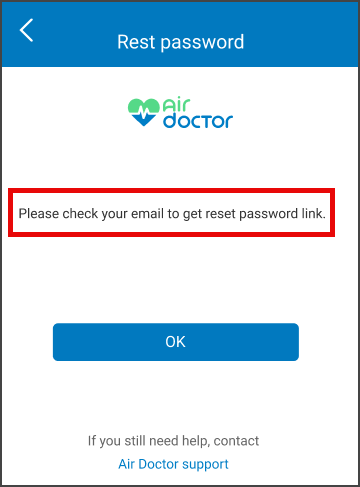
This screen includes:
| # | Element | Description |
|---|---|---|
| 1 | Close action | Dismiss modal |
| 2 | Message | Reset email confirmation |
Workflow
- Submit a valid email in the Reset Password Request screen.
- Display the confirmation modal.
- Select close to dismiss the modal.
- Open the reset email and follow the instructions.
Validations
| Scenario | App behavior | SDK output |
|---|---|---|
| Email field is empty | Disable Reset password button | validation = required |
| Email format is invalid | Display inline error | error = invalid_email |
| Email format is valid | Enable submission | validation = valid |
| Email not found | Display generic success message (no exposure) | state = email_sent |
| Request in progress | Show loading state on button | state = loading |
| Request fails | Display error message | error = network |
Actions
| Scenario | App behavior | SDK output |
|---|---|---|
| Email entered | Update input state | email = updated |
| Reset password selected | Submit email | Request triggered |
| Request succeeds | Navigate to confirmation screen | state = email_sent |
| Close selected | Dismiss modal | Navigation event |
| Contact support selected | Open support channel | External navigation event |
Endpoint Resources
Reset Password Email Sent
PUT
v3/account/password/reset/request/successful
Returns page configuration. Client renders the screen from the response.
Reset Password Link Request
POST
v3/account/password/reset/request
Sends a password reset email to the provided address.
Returns a success response with no body. The client proceeds by displaying the Email Sent Confirmation screen.