Delete Data Relogin
The Delete Data and Log in Again screen confirms account deletion and requires password verification before executing the request.
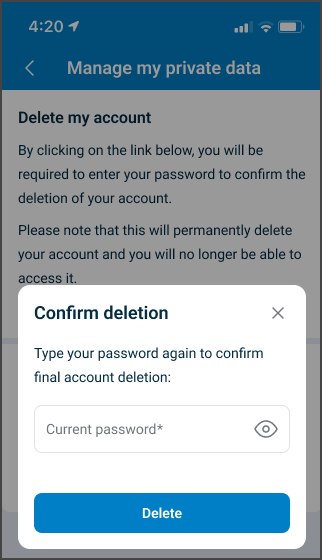
This screen includes:
- Header - Displays Manage my private data with back navigation.
- Password field - Accepts current password.
- Password visibility toggle
- Delete button
- Close control
Workflow
This flow starts when the deletion confirmation screen is open.
- Enter current password.
- Select Delete.
- Submit deletion request.
Validations
These rules enforce authentication and deletion constraints.
| Scenario | App behavior | SDK output |
|---|---|---|
| Password empty. | Disable Delete action. | Validation state: missing input. |
| Password invalid. | Reject request and display error. | INVALID_CREDENTIALS. |
| Password valid. | Allow deletion. | Verification success. |
| Session invalid or expired. | Block deletion and require login. | state = unauthenticated. |
Actions
| Scenario | App behavior | SDK output |
|---|---|---|
| User enters password. | Validate input. | Field validation state updated. |
| User confirms deletion. | Submit deletion request and terminate session. | Deletion request sent, state = loggedOut, emit onLogout. |
| User cancels deletion. | Close screen and retain account. | No state change. |
| Deletion request succeeds. | Remove account access. | Account deleted event or success response. |
| Deletion request fails. | Display error state. | Error response returned. |
Endpoint Resources
Delete Data Relogin
PUT
/manage/delete/relogin
This endpoint returns the relogin screen that requires password verification before account deletion.