Confirm Request
Use the Confirm Request screen to review the current request state and initiate payment authorization before request submission.
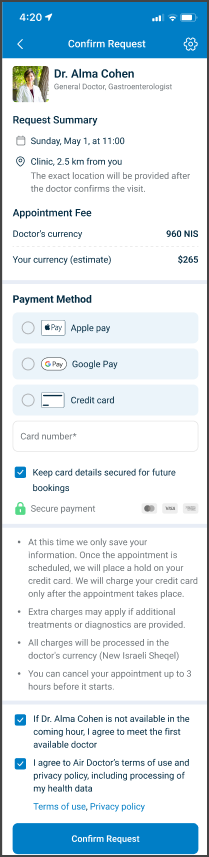
This screen includes
- Doctor summary header with doctor name, specialty, and profile image.
- Request summary section that contains the selected appointment date, time, and clinic location, with a note that indicates when the exact location becomes available after confirmation.
- Appointment fee section that contains the fee in the provider currency and an estimated amount in the user currency.
- Payment method selector with available platform methods such as Apple Pay, Google Pay, and credit card.
- Credit card form with required card input fields when a card-based method is selected.
- Save payment details option that stores a payment method reference for later use when enabled.
- Security notice that indicates secure payment handling and supported card types.
- Billing and charge notes that describe charge timing, possible additional fees, currency rules, and cancellation limits.
- Doctor availability fallback option that enables configured reassignment when the selected doctor becomes unavailable.
- Terms and privacy consent checkbox that requires agreement to the Terms of Use and Privacy Policy and consent for health data processing.
- Primary action button that initiates payment authorization and submits the request on success.
Workflow
This screen appears after the user selects an appointment location and time.
- Choose a payment method and provide the required payment details.
- Review the appointment fee, currency information, and billing notes.
- Enable the option to save payment details, if needed.
- Review the security notice and supported payment methods.
- Agree to the Terms of Use and Privacy Policy by selecting the required consent checkboxes.
- Select Confirm Request to initiate payment authorization and submit the request on success.
notes
- The SDK validates request state and provider availability before submission.
- If provider availability changes before submission, the SDK applies the configured fallback rules.
- If the request expires before submission, the SDK returns request state
expired. - After submission, the SDK returns a finalized request state and prevents further edits.
Validations
These rules control payment visibility, input requirements, and submission eligibility.
| Scenario | App Behavior | SDK Output |
|---|---|---|
| Payment is not required. | The payment section remains hidden and submission remains enabled. | Returns a request state that does not require payment authorization. |
| Payment is required. | Supported payment methods appear based on platform capability. | Returns a request state that requires payment authorization. |
| Payment options load. | A default payment method becomes selected based on configured logic. | Returns the proposed payment method. |
| A saved card exists and was previously stored. | The saved card becomes selected by default. | Returns the saved card reference. |
| No saved card is available. | The first available payment method becomes selected. | Returns the default payment method. |
| A wallet-based method is selected. | Manual card input fields remain hidden. | Indicates wallet-based payment selection. |
| A card-based method is selected. | Card details remain required for submission. | Returns validation errors for invalid or missing input. |
| Submission occurs with invalid payment details. | The primary action remains disabled and errors appear inline. | Returns a payment validation error. |
| Payment authorization fails. | The request state remains unchanged and submission does not complete. | Returns a payment authorization error. |
| The request expires before submission. | Submission and editing remain disabled. | Returns a request state of expired. |
Actions
These actions describe how the request completes or exits.
| Scenario | App Behavior | SDK Output |
|---|---|---|
| Review of the request occurs. | Appointment, fee, and payment summary details remain visible. | Returns the current request state. |
| A payment method change occurs. | The selected payment method updates. | Returns the updated payment method. |
| Entry of new card details occurs. | Input validates and submission eligibility updates. | Returns validated card details or errors. |
| Submission occurs with a card-based method. | Payment authorization runs and request submission completes on success. | Returns payment authorization result and submission status. |
| Submission occurs with Apple Pay or Google Pay. | Platform wallet authorization runs and request submission completes on success. | Returns wallet authorization result. |
| Successful submission completes. | The request becomes read-only in Appointment Details. | Returns the finalized request state. |
| Back navigation occurs. | Navigation returns to the previous screen without submission. | Returns the unchanged request state. |