Appointment Request
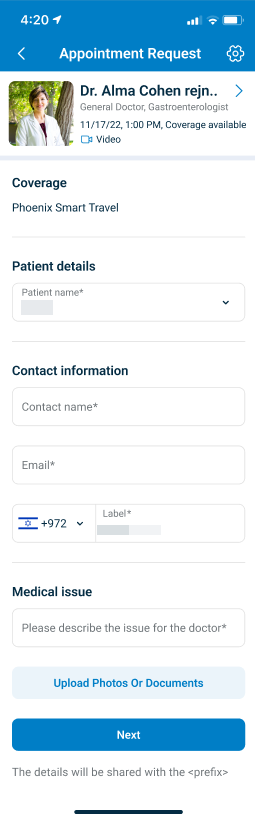
The Appointment Request screen allows the user to review the selected doctor and submit required request data.
important
Field visibility and section structure vary by coverage type. Private-pay and insured users display different fields.
This screen includes
- Doctor summary - Name, specialty, date, time, coverage status, and visit type.
- Coverage section - Displays the selected insurance or travel policy.
- Patient selector - Requires patient selection.
- Contact information - Requires name, email, phone, and country code.
- Medical issue - Requires text input.
- Document upload - Attaches documents to the request.
- Primary action - Submits the request.
- Privacy notice - Indicates provider data sharing.
Workflow
This screen continues after date, time, and location selection.
- Review appointment and provider details.
- Enter required contact information.
- Enter medical issue.
- Upload documents if required.
- Select Next.
Validations
The primary action remains disabled until all required validations pass.
| Scenario | App Behavior | SDK Output |
|---|---|---|
| Required field empty. | Field highlights. Submission blocked. | Field validation error. |
| Invalid email or phone format. | Inline error displays. | Validation error with field identifier. |
| Selected patient missing required data. | Patient error displays. | Validation error for patient object. |
| Coverage invalidates eligibility. | Submission blocked. Eligibility error displays. | Eligibility validation error. |
| Request expires. | Actions disabled. | state = expired. |
Actions
| Scenario | App Behavior | SDK Output |
|---|---|---|
| Next selected with valid input. | Confirmation step opens. | Pending request created. |
| Document uploaded. | File attaches to request. | Update set with document reference. |
| Patient or coverage changed. | Eligibility re-evaluates. | Updated validation result. |
| Expiration reached. | Request locks. | state = expired. |