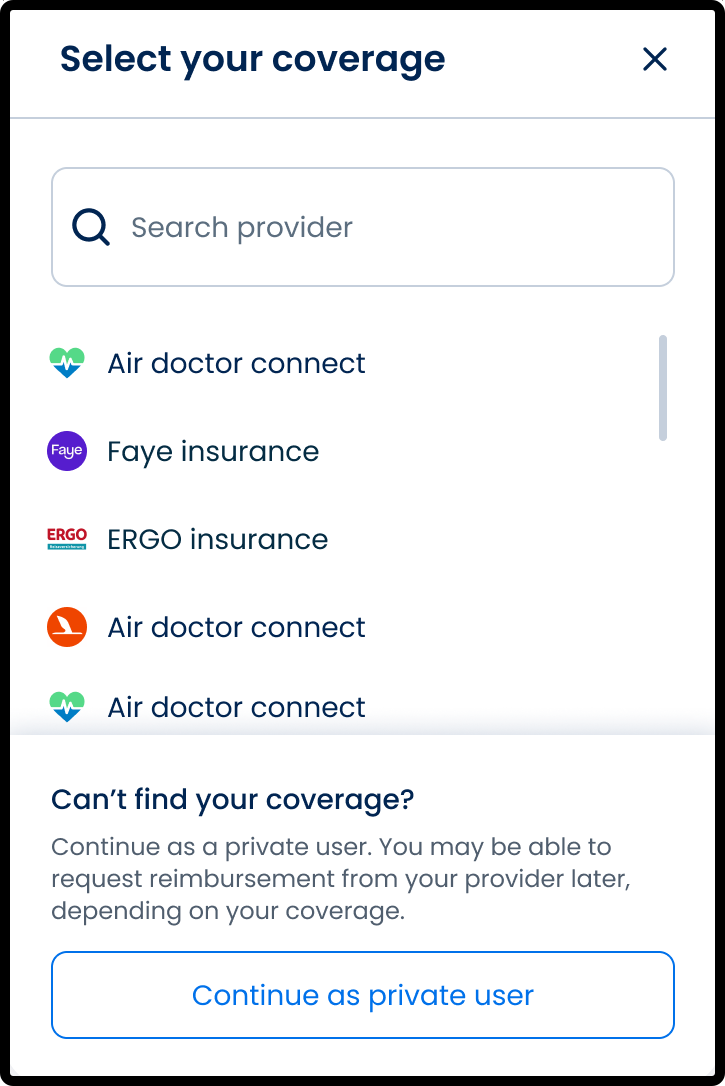
Add Coverage
Use the Add Coverage screen to link an insurance policy to a patient account.
The screen opens when no validated coverage exists or when the user selects Add Coverage from the policy selector.
The SDK invokes the screen when the policy state requires verification, but integrators can open it manually from any supported flow.
Users enter the policy number and any insurer-required identifiers. The app displays private-pay options when enabled.
This screen includes:
- Insurance provider selector with configured insurers.
- Policy number input.
- Additional identifiers that appear only when the insurer requires them.
- Private pay mode options when enabled.
- Add Coverage button to validate and link the coverage.
- Automatic return to the invoking flow after successful coverage creation.
Each insurer defines its required identifiers. The screen displays only the fields required for the selected insurer.
Workflow
-
Open the Policy field.
-
Select an insurer, select Add Coverage, or select a private-pay option.
-
Enter the policy number and any required identifiers.
-
Select Add Coverage to validate and link the coverage.
After a successful submission, the SDK stores the coverage and returns to the invoking flow.
If coverage validation fails, the screen displays retry options and allows a switch to private-pay mode when enabled.
The SDK maintains the coverage state: Unverified, Validating, Active, and Invalid.
To change the active policy, reopen the Policy field and select another insurer or private-pay mode.
Validations
Policy number requires a valid value
Check: The app verifies that the policy number matches the required format.
Failure result: The field shows an inline error and the SDK blocks submission until the value is valid.
Required identifiers must be valid
Check: The app verifies every identifier that the selected insurer requires.
Failure result: The screen shows inline errors and the SDK blocks submission until all visible identifiers are valid.
Personal ID format check
Check: The app verifies that the Personal ID matches the expected pattern.
Failure result: The field shows an inline error and the SDK prevents submission until the pattern is correct.
Date of birth validation
Check: The app verifies that the date of birth value represents a valid date.
Failure result: The field shows an inline error and the SDK blocks submission until the date is valid.
Phone number validation
Check: The app verifies that the phone number matches the required format.
Failure result: The field shows an inline error and the SDK prevents submission until the number is valid.
Field validation blocks submission
Check: The app verifies all visible fields on the Add Coverage screen.
Failure result: The Add Coverage button remains unavailable and the SDK accepts no submission until all values are valid.
Coverage validation errors
Check: The app verifies the coverage with the insurer.
Failure result: The screen shows an error pop-up with retry or private-pay options, and the SDK emits a validation-failure event while keeping all entered values intact.
Actions
Open Add Coverage
Operation: The SDK opens the Add Coverage screen when coverage is missing, invalid, or unverified.
SDK result: The host app receives a consistent entry point.
Validate submitted data
Operation: The SDK verifies the policy number and all required identifiers when the user selects Add Coverage.
SDK result: The SDK emits a success or failure event.
Activate coverage
Operation: The SDK stores the active coverage when validation succeeds.
SDK result: The SDK emits onCoverageCreated and resumes the invoking flow.
Apply insurer branding
Operation: The SDK applies the insurer’s branding data to the screen.
SDK result: The app UI reflects the insurer’s visual configuration.
Update pricing and claim rules
Operation: The SDK refreshes pricing and claim rules when coverage becomes active.
SDK result: Dependent UI elements update in the current appointment flow.
Switch to private-pay mode
Operation: The app switches to private-pay mode and removes insurer fields when the user selects private pay or when validation fails.
SDK result: The SDK emits onCoverageModeChanged.
Return to the invoking flow
Operation: The SDK closes the Add Coverage screen after coverage activation or private-pay selection.
SDK result: The host app receives the updated coverage state.
Emit coverage events
Operation: The SDK emits events when coverage activates, validation fails, or the mode changes.
SDK result: The host app receives consistent signals for state management.
Endpoint Resources
🧰 Endpoint Resources under construction