Search Symptom
Use the Search Symptom screen to scope symptom search and specialty shortcuts to the selected location and coverage context. The screen renders symptom suggestions and specialty entries based on input text, coverage rules, and provider availability.
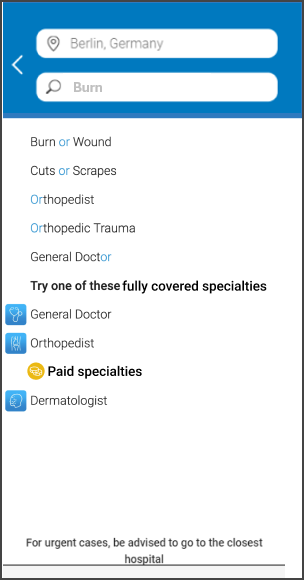
This screen includes
- Back control aligned with the location field.
- Location field.
- Type your need input.
- Symptom and condition suggestion list.
- Highlighted keyword matches within suggestions.
- Try one of these fully covered specialties section.
- Specialty cards with icon indicators.
- Paid specialties section with pricing indicator when specialty fee metadata exists.
- Informational footer advising urgent cases to go to the closest hospital.
Workflow
The Search Symptom screen follows this execution sequence:
- Open the Search Symptom screen from the Home screen entry point.
- Enter at least two letters in Type your need when the input renders.
- Review symptom and condition suggestions.
- Select a symptom suggestion or a specialty shortcut.
- The app opens the Doctor List screen with filters derived from the selected item.
The Search Symptom screen evaluates country scope, coverage mode, and provider availability before it renders messaging and primary actions.
Screen Behavior
The Search Symptom screen follows a clear execution order:
location validation → input filtering → result rendering → coverage messaging.
Validate Location Context
The screen scopes all results to the selected country.
location.countrymust exist.- Without a resolved country, the screen does not trigger symptom search and does not render suggestions.
Determine Search Field Availability
The Type your need input depends on configuration.
-
When the input renders:
Symptom search runs when input length meets the minimum threshold. -
When the input does not render:
The screen renders specialty shortcuts and coverage messaging only.
Coverage Messaging and Primary Action
After the screen evaluates availability, it renders one message above the primary action.
When location permission is not granted and the user selects Book a video visit, the app triggers the location permission request.
Case 1: Video Consultation Only (Coverage)
When coverage supports video consultation only:
- Your coverage includes a video consultation only.
- Book a video visit button.
Case 2: No Doctors in the Selected Area
When no providers match the selected location:
-
If video consultation is available:
In this area, we will be happy to help you find a doctor through our Customer service or to offer you a video visit with one of our online doctors.
- Book a video visit button.
-
If video consultation is not available:
In this area, we will be happy to help you find a doctor through our Customer service.
Case 3: Video Consultation Only (Location)
When the selected area supports video consultation only:
- In this area, we can offer you only a video consultation.
- Book a video visit button.
Validations
| State Condition | Constraint | Output Behavior |
|---|---|---|
location.country missing | Block country-scoped search | Do not render suggestions |
Input length < 2 | Do not trigger search | Suggestion list unchanged |
Input length ≥ 2 | Trigger search | Updated suggestion list |
coverageMode = videoOnly | Force video-only state | Render video-only message and button |
hasProvidersInArea = false | No providers available | Render availability message |
| Video-only due to location | Restrict visit types | Render location-based video-only message |
Actions
| Input | Current State | State Transition | Output |
|---|---|---|---|
| Select back | Any | Close Search Symptom screen | Return to previous screen |
| Update location | Any | Recompute country scope | Refresh suggestions and messaging |
| Enter text | Input visible | Apply threshold validation | Refresh suggestion list when length ≥ 2 |
| Select symptom | Suggestions visible | Commit filter | Open Doctor List screen |
| Select specialty | Specialty shortcuts visible | Commit filter | Open Doctor List screen |
| Select Book a video visit | Video CTA visible | Initiate video visit flow | Open video booking flow |
| Select Book a video visit | Permission denied | Trigger permission request | Location permission prompt |