Scan to Pay
The Scan to Pay flow enables patients to complete payment for walk-in visits using a QR code generated at the clinic.
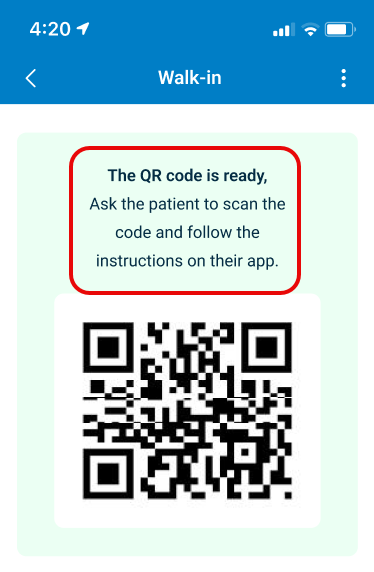
This screen includes:
- Location selector (when multiple locations exist)
- Doctor selector (when required)
- QR code display
- Instruction message
Workflow
This flow involves two participants:
- Clinic (QR generation)
- Patient (payment completion)
Clinic Flow
- Select visit configuration.
- Generate QR code.
- Display QR code to patient.
Patient Flow
After scanning the QR code:
- Open Scan to Pay flow.
- Authenticate or register.
- Review charges.
- Confirm payment.
Payment Behavior
- Load charges based on QR session data.
- Apply pricing rules from booking flow.
- Process payment through standard payment methods.
Validations
These rules enforce eligibility and flow correctness.
| Scenario | App Behavior | SDK Output |
|---|---|---|
| Visit supports Scan to Pay. | Display QR code. | QR payload generated. |
| Visit does not support Scan to Pay. | Disable QR and display fallback message. | QR generation blocked. |
| Multiple locations exist. | Require selection before QR generation. | Selection state required. |
| Multiple doctors exist. | Require selection before QR generation. | Selection state required. |
| QR scanned with invalid payload. | Block flow. | Invalid session response. |
| Patient not authenticated. | Require login. | Auth required state. |
| Payment fails. | Block completion. | Payment failure response. |
| Payment succeeds. | Complete flow. | Payment success event. |
Actions
| Scenario | App Behavior | SDK Output |
|---|---|---|
| QR generated. | Display QR code. | QR session created. |
| QR scanned. | Open patient flow. | Session transferred to patient app. |
| Payment initiated. | Start payment process. | Payment session created. |
| Payment completed. | Finalize visit. | Payment success event. |
| QR unavailable. | Display fallback instruction. | No QR session created. |
Endpoint Resources
🧰 Endpoint Resources under construction