Payment Methods
Use the Payment Methods flow to select, authorize, or update a payment method required for appointment booking and management.
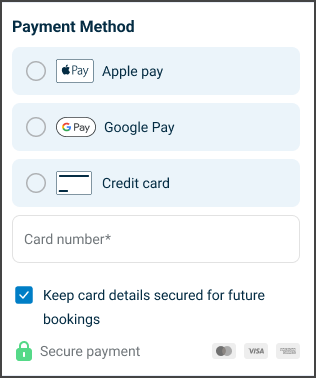
This screen includes:
| # | Element | Description |
|---|---|---|
| 1 | Header | Displays the Payment Methods title and close control. |
| 2 | Payment method selector | Displays available payment options. |
| 3 | Wallet options | Displays supported wallet payment methods. |
| 4 | Saved payment methods | Displays previously authorized payment methods. |
| 5 | Add payment method | Opens payment method entry. |
| 6 | Payment details form | Captures payment information. |
| 7 | Save payment method option | Saves a payment method for future use. |
| 8 | Security indicator | Indicates secure payment processing. |
Entry Points
| Entry Point | Behavior |
|---|---|
| Home screen payment update card | Opens the payment provider flow. |
| Appointment page | Opens the payment provider flow. |
| Alternative offer acceptance | Displays a confirmation dialog before opening the payment provider flow. |
Workflow
- Open the Payment Methods flow.
- Select a saved payment method or add a new payment method.
- Complete payment authorization when required.
- Return to the originating workflow.
Alternative Offer Payment Update
When a selected alternative offer requires updated payment information, the application displays a confirmation dialog.
Title
Update payment method
Message
Your payment method needs to be updated before you can continue. Select Continue to open the secure payment page and update your payment details.
| Action | Behavior |
|---|---|
| Continue | Opens the payment update flow. |
| Cancel | Closes the dialog. |
Validations
| Scenario | App Behavior | SDK Output |
|---|---|---|
| No payment method selected. | Blocks submission. | validation = missing_payment_method |
| Payment details invalid. | Displays validation errors. | error = invalid_payment_details |
| Wallet not supported. | Hides the option. | capability = disabled |
| Authorization fails. | Displays an error. | error = authorization_failed |
| Request in progress. | Displays a loading state. | state = loading |
| Network failure. | Displays an error. | error = network |
| Payment update required. | Blocks continuation until completion. | state = payment_update_required |
Actions
| Scenario | App Behavior | SDK Output |
|---|---|---|
| Payment method selected. | Updates selection state. | paymentMethod = updated |
| Add payment method selected. | Opens payment entry. | state = payment_entry |
| Payment details submitted. | Validates payment information. | paymentMethod = submitted |
| Payment update required. | Opens payment update flow. | state = payment_update_required |
| Alternative offer accepted and payment update required. | Displays confirmation dialog. | state = confirmation_required |
| Continue selected. | Opens payment update flow. | state = payment_update_started |
| Authorization succeeds. | Continues the originating workflow. | state = authorized |
| Authorization fails. | Displays an error. | error = authorization_failed |
| Payment update canceled. | Returns to the previous screen. | state = canceled |
| Close selected. | Dismisses the flow. | Navigation event. |
Endpoint Resources
Checkout
PATCH
v3/wizard/appointments/checkout
Performs a minimal booking or checkout action payload for the Stripe proxy flow.