Discounts and Promotions
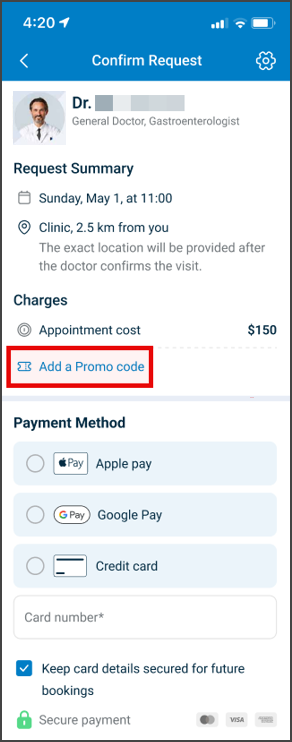
The Discounts and Promotions screen applies promo codes to modify appointment pricing.
note
The promo code field appears only when enabled for the current configuration.
This screen includes:
- Promo code input field
- Apply button
- Remove promo action
- Error message area
- Charges summary section
- Base fee
- Discount
- Total
Workflow
This flow starts when the Discounts and Promotions screen is visible.
Primary Flow
- Enter promo code.
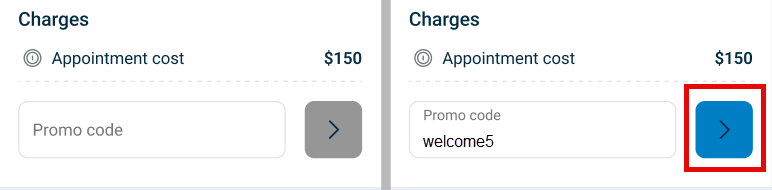
- Submit code.
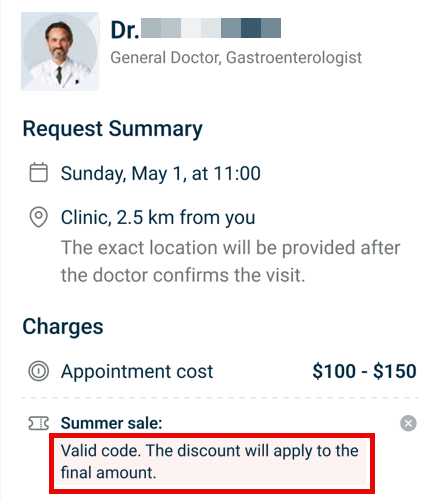
- Review updated pricing.
- Continue booking.
Pricing Behavior
- Apply discounts only to base appointment fee.
- Recalculate totals after promo application.
- Support both fixed and percentage-based discounts.
Payment Impact
- Skip payment collection when total equals zero.
- Display disclaimer when payment is not required.
Validations
These rules ensure correct input and pricing constraints.
| Scenario | App Behavior | SDK Output |
|---|---|---|
| Promo code field empty. | Disable apply action. | Validation state: empty input. |
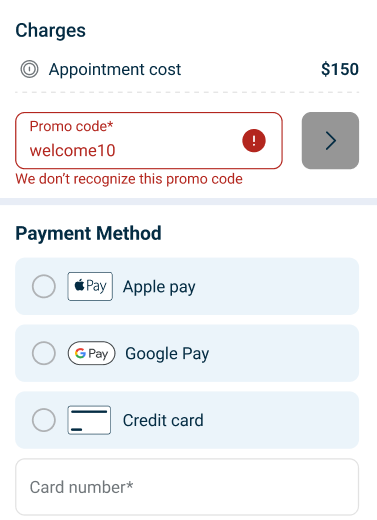
| Invalid promo code. | Display error message. | Validation error returned. |
| Promo code valid. | Enable pricing update. | Promo validation success. |
| Discount exceeds base fee. | Cap discount at base fee. | Adjusted pricing response. |
| Total becomes negative. | Set total to zero. | Pricing normalized to zero. |
| Currency differs. | Display conversion line. | Pricing response includes conversion. |
Actions
| Scenario | App Behavior | SDK Output |
|---|---|---|
| Promo code submitted. | Validate and calculate discount. | Pricing response updated. |
| Promo applied. | Update charges and total. | Discount included in pricing payload. |
| Promo removed. | Restore base pricing. | Pricing response reset. |
| Appointment data changes. | Recalculate pricing. | Updated pricing response. |