Translation Language
Use the Translation Language popup to select a language for localized appointment content.
The Doctor App opens this popup when the doctor selects See Translation on the Appointment Details screen.
After you save, the app refreshes the appointment view and displays translated content when translations exist.
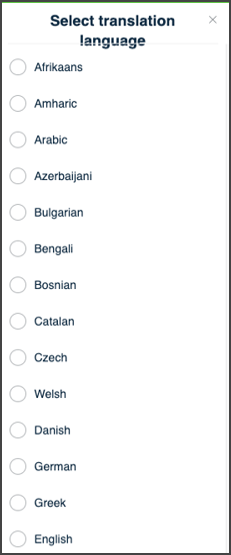
This popup includes:
- A language selector that lists supported languages from platform configuration.
- A Save changes button that stays disabled until you select a language.
- A close control that exits without changes.
- Inline content refresh for the current appointment after you save.
Workflow
Select a Language
- On the Appointment Details screen, select See Translation.
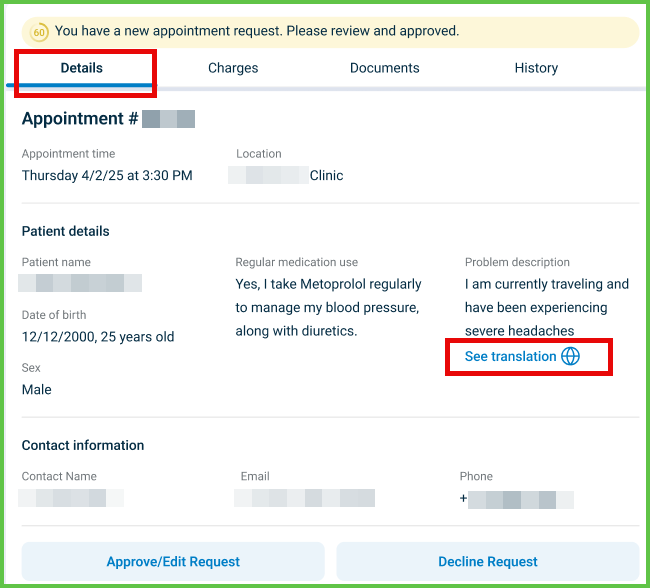
- In the Translation Language popup, select a language.
- Select Save changes.
- Confirm that the popup closes and the appointment view refreshes.
Cancel
- In the Translation Language popup, select the close control.
- Confirm that the appointment content stays unchanged.
Validations
These scenarios describe how the app validates the Translation Language popup and what the integrator can expect.
| Scenario | App Behavior | SDK Output | Example |
|---|---|---|---|
| The doctor does not select a language. | The app keeps Save changes disabled. | No request is sent. | — |
| The doctor selects a language that does not exist in platform configuration. | The app blocks submission and displays an error message. | Error response that indicates an invalid or unsupported language. | — |
| The appointment has no translation for the selected language. | The app keeps original content and closes the popup. | Successful response; translated fields are absent or unchanged. | — |
| Authorization denies translation access. | The app blocks the action and displays an error message. | Error response; no change to language preference or appointment view state. | — |
Actions
These scenarios describe how the app responds to actions in the Translation Language popup and what the SDK returns.
| Scenario | App Behavior | SDK Output | Example |
|---|---|---|---|
| The doctor selects a supported language and saves. | The app stores the preference and refreshes the appointment view. | Server-side confirmation; subsequent page responses reflect the selected language. | — |
| The doctor selects See Translation after a language is set. | The app requests translated content for the appointment. | Update set that toggles translation display state. | 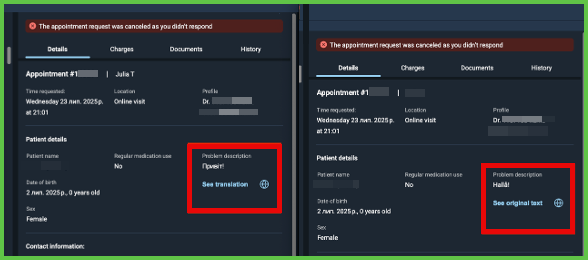 |
| The doctor closes the popup. | The app exits without changes. | No update set that changes language preference. | — |
Endpoint Resources
Select Translation Language
PUT
/account/translation-language
Produces the Translation Language popup.
The response body includes the supported language options and the current preference state.
UI Element Types
| Level | Reference | Type | Value | Placement |
|---|---|---|---|---|
| 1 | spoken-language~af | Radio | Afrikaans | — |
| 1 | spoken-language~am | Radio | Amharic | — |
| 1 | spoken-language~yue | Radio | Chinese – Cantonese | — |
| 1 | save-changes | Secondary | Save changes | — |
Translate
PATCH
/profile/appointments/{appointment-id}/translate
Returns an update set that toggles translated content display for the appointment.
Update Translation Language
POST
/account/translation-language
Stores the selected translation language preference.
Parameters
| Name | Type | Required | Description |
|---|---|---|---|
language | Enum | Yes | Language code for translation. |
Errors
| Code | Description |
|---|---|
WRONG_DATA | The selected language is invalid or unsupported |