Offer Appointment
Use the Offer Appointment screen to create, update, or cancel a follow-up appointment offer from a completed appointment.
The Doctor App sends the offer to the patient for review in the patient app.
The screen supports one primary offer and up to three suggested alternatives.
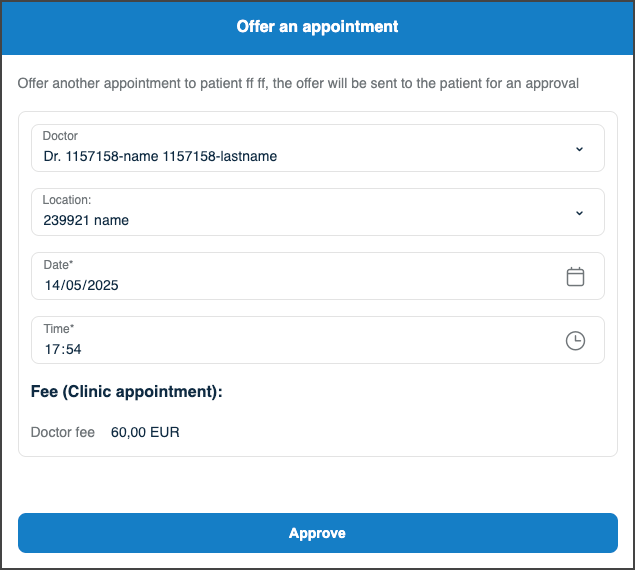
This screen includes:
- A follow-up appointment offer form.
- A Suggested Scheduling card with up to three alternatives.
- Editable fields for date, time, and location.
- An optional note field for the patient.
- A submit action that activates only when required values are valid.
- Controls to edit or cancel an active offer.
- An expiration rule that ends the offer after a configured timeout.
- Navigation back to appointment history after a successful submit.
Workflow
Create an Offer
- Open a completed appointment.
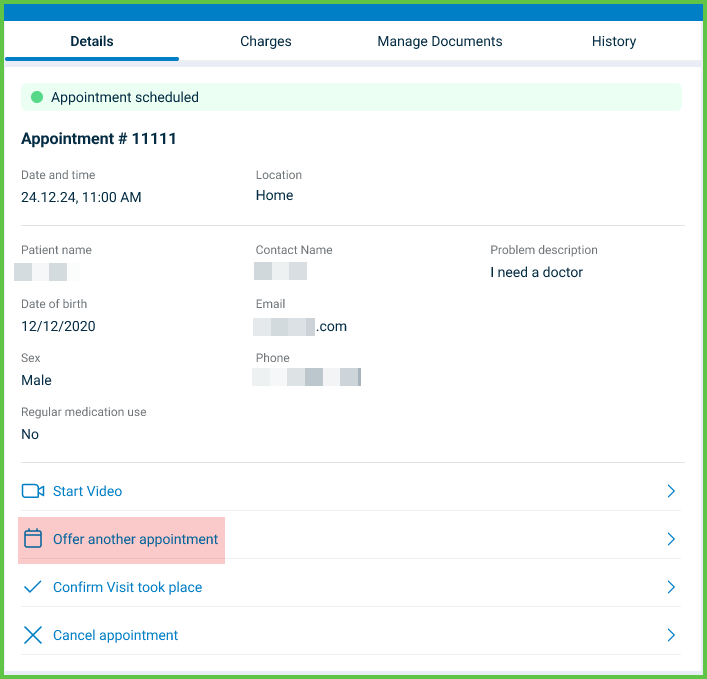
- Enter the proposed date and time.
- Select a location.
- (Optional) Enter a patient note.
- Select Submit Offer.
- Verify that the app returns to appointment history after success.
Edit an Offer
- Open an active offer.
- Select Edit.
- Update offer values.
- Select Update Offer.
Cancel an Offer
- Open an active offer.
- Select Cancel.
- Confirm the cancellation.
Validations
These scenarios describe how the app validates the Offer Appointment screen and what the integrator can expect.
| Scenario | App Behavior | SDK Output | Example |
|---|---|---|---|
| The doctor leaves date, time, or location empty. | The app keeps the submit action disabled and highlights missing fields after interaction. | Validation error in the update set or action blocked client-side; no offer submission. | — |
| The doctor adds duplicate suggested alternatives. | The app blocks the duplicate and keeps the alternatives unchanged. | Validation error that targets the suggested scheduling group. | — |
| The doctor adds more than three suggested alternatives. | The app blocks the action and keeps only the allowed alternatives. | Validation error that targets the suggested scheduling group. | — |
| The offer reaches the expiration timeout. | The app marks the offer as expired and blocks submit or update actions. | Server response reflects expiration state; subsequent page responses reflect the inactive offer. | — |
Actions
These scenarios describe how the app responds to actions on the Offer Appointment screen and what the SDK returns.
| Scenario | App Behavior | SDK Output | Example |
|---|---|---|---|
| The doctor submits a valid offer. | The app sends the offer and navigates to appointment history. | Server-side confirmation; subsequent page responses reflect the new offer state. | — |
| The doctor updates an active offer with valid values. | The app updates the offer and displays confirmation. | Update set or server response that reflects updated offer data. | — |
| The doctor cancels an active offer. | The app clears the active offer state after confirmation. | Update set or server response that reflects the cancellation. | — |
| A submission fails due to a server or network error. | The app displays an error message and keeps the screen open with existing values. | Error response; no change to offer state. | — |
Endpoint Resources
Offer an Appointment
PUT
/profile/appointments/{appointment-id}/offer-appointment
Produces the Offer Appointment screen for the specified appointment.
The response body includes:
- Offer message text.
- Suggested scheduling card content.
- Offer form inputs and action controls.
UI Element Types
| Level | Reference | Type | Value | Placement |
|---|---|---|---|---|
| 1 | offer-message | Regular | Offer another appointment to patient (full name), the offer will be sent to the patient for approval | — |
| 1 | alternative~{1} | Card | — | |
| 2 | — | — | Suggested Scheduling | — |
| 1 | spacer | Spacer | — | |
| 1 | approve | Button | Approve | — |
Approve an Offer
POST
/profile/appointments/{appointment-id}/offer-appointment
Confirms the follow-up appointment offer for the specified appointment.
Parameters
| Name | Type | Required | Description |
|---|---|---|---|
location | int | Yes | Unique identifier for the selected location. |
profile | int | Yes | Unique identifier for the doctor profile. |
date | Date | Yes | Appointment date. |
time | Time | Yes | Appointment time. |
Errors
| Code | Description |
|---|---|
APPOINTMENT_CHANGED | The appointment changes before confirmation. |
POLICY_DATES_NOT_VALID | The selected date violates scheduling policy constraints. |
FORBIDDEN_DUE_TO_CHUNKS | The value combination does not satisfy chunk requirements. |
THIRD_PARTY_DATA_INVALID | A third-party system returns invalid or missing data. |
FIELDS_VALIDATION_ERROR | One or more required fields are missing or invalid. |