Embedded WebView Integration
- Embeds the full Air Doctor application inside your app or site.
- Uses an iframe on web or a WebView on mobile.
- Keeps your navigation and branding intact.
- Supports camera, microphone, and location access.
- Complies with environments that block third-party JavaScript.
- Requires minimal code and integrates inside an existing layout.
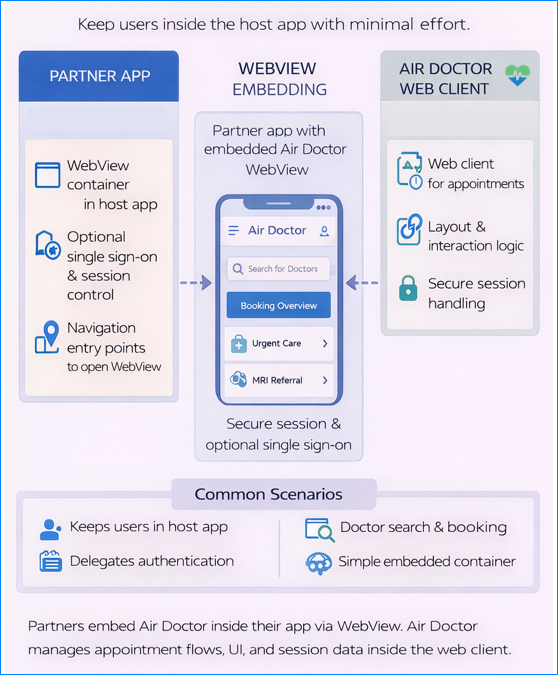
Platform-specific limitations may affect exact behavior. Test on target devices to confirm compliance. A reference implementation is available to support this integration.
User Flow Overview
- Host loads the Air Doctor application inside an iframe or WebView.
- Air Doctor adapts to the container dimensions.
- User completes authentication.
- User accesses all Air Doctor services inside the embedded frame.
This sequence preserves the host navigation while Air Doctor manages the care workflow.
Use Cases
Level 2 is suitable when you want to keep your own navigation and branding while Air Doctor handles end-to-end healthcare workflows. Common use cases include:
- Partners with their own consumer app who want to add medical assistance flows without duplicating functionality.
- Web portals that want to display the Air Doctor service inline without redirecting users away from their site.
- Scenarios with minimal development resources that still require a tighter visual alignment than a full redirect (Level 1).
- Environments with strict content‑security policies or industry regulations that forbid running third‑party JavaScript in the host page. Embedding the entire Air Doctor application in an iframe or WebView enables full functionality without injecting our code into the host page context.
Before You Embed: Quick Checklist
- Confirm support for camera, microphone, and location.
- Confirm WebView and iframe permission flags.
- Confirm layout space for variable-height content.
- Confirm cross-origin policies in your platform.
- Confirm scroll behavior inside the container.
Embedding the Air Doctor Site
Start by creating an <iframe> (or mobile WebView) that points to the Air Doctor application. Use this base URL:
https://www.air-dr.com/app/
For example, embedding in a web page can look like:
<iframe
  src="https://www.air-dr.com/app/"
  style="width: 100%; height: 600px; border: none;"
  allow="clipboard-write; fullscreen"
></iframe>
The Air Doctor client scales its content to match the size of the iframe or WebView.
Permissions and Location
When the Air Doctor app runs inside a WebView it may need to access device features:
- Camera and microphone – These permissions request activation only when a user initiates a video consultation. The host app must allow these capabilities in its WebView configuration.
- Location – By default, the app asks for geolocation access at launch to locate nearby clinics and doctors. If your system already knows the user location, you can bypass this prompt by passing coordinates as part of the app directives (see below).
| Platform | Required Capabilities |
|---|---|
| Web iframe | allow="fullscreen; clipboard-write" |
| Android WebView | Camera, microphone, location enabled |
| iOS WebView | WKWebView media capture and geolocation enabled |
Reference Implementations
To simplify integration, we maintain a public Git repository with sample projects for Level 2 integration. These examples show how to embed the Air Doctor WebView, handle the ready → token handshake, manage permissions, and complete additional required steps. Implementations exist in:
- Pure JavaScript - For web integrations.
- Native Swift - For iOS apps.
- Native Kotlin - For Android apps.
Web‑only Alternative (Level 3 without CSS Overrides)
For web platforms, consider Level 3 (embedded WebView with CSS overrides) even when you do not plan to apply style adjustments. Level 3 uses a simple JavaScript function to set the authentication token directly and avoids cross-origin messaging used by iframes. This method provides a cleaner integration and requires effort comparable to Level 2.
Because Level 3 does not rely on an <iframe>, you can embed the Air Doctor component inside any container element (<div>). The component expands to match its content and does not depend on a predefined iframe height. This approach enables responsive layouts and removes internal scrollbars. Even without style overrides, this web-only option often provides a better user experience than the Level 2 iframe option.
Level Comparison
| Feature | Level 2 | Level 3 |
|---|---|---|
| Uses iframe | Yes | No |
| Token injection | Cross-origin messaging | Direct function call |
| Custom CSS | No | Yes |
| Responsive height | Limited | Full |
| Host styling | Not applied | Applied |
Next Steps
Level 2 offers a direct method to embed the Air Doctor experience inside your app or site while you keep your navigation and branding. External user management support is available. For deeper customization or improved alignment on the web, review the documentation for Level 3 and higher.