Generate QR Code for Walk-In
Use Generate QR Code for Walk-In to complete the walk-in appointment flow.
The app displays this screen after the doctor selects an eligible insurer and a supported location.
The patient scans the QR code to activate the appointment on their mobile device.
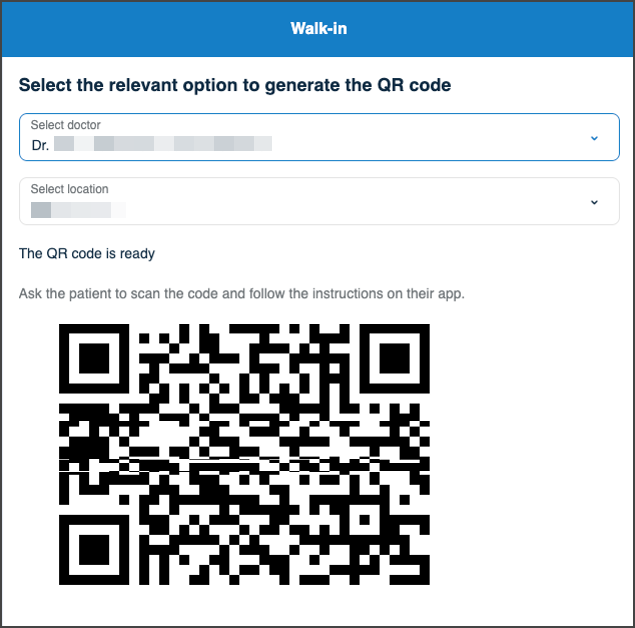
This screen includes:
- A scannable QR code generated after eligibility validation.
- Suppression of the QR code when the selected location does not support scan-to-pay, such as Home.
- Status messages when the QR code expires or becomes invalid.
- Backend validation to confirm eligibility before display.
Workflow
Generate and Use a Walk-In QR Code
- From the Walk-In screen, select an eligible insurer and Clinic as the location.
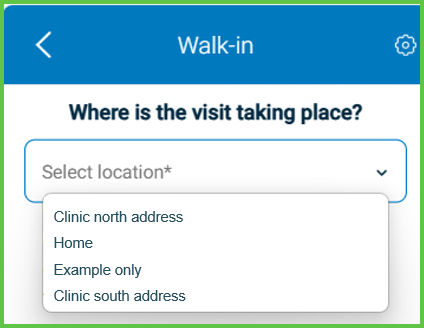
- The app validates the insurer and location combination.
- The app generates and displays a QR code.
- Ask the patient to scan the QR code using their mobile device.
- After a successful scan, the app activates the appointment.
note
If the QR code expires before the patient scans it, the app prompts the doctor to generate a new code.
Validations
These scenarios describe how the app validates QR code generation and what the integrator can expect.
| Scenario | App Behavior | SDK Output | Example |
|---|---|---|---|
| Insurer or location is missing. | The app does not generate a QR code. | Validation error response. | — |
| Location does not support QR. | The app hides the QR code and displays guidance. | Non-QR state response. | — |
| Eligibility validation fails. | The app blocks QR generation and displays an error. | Error state in response. | — |
| QR code expires. | The app disables the QR code and displays an expiration message. | Expired QR state. | — |
| QR code is scanned successfully. | The app activates the appointment. | Appointment activation response. | — |
Actions
These scenarios describe how the app responds to actions on the Generate QR Code for Walk-In screen.
| Scenario | App Behavior | SDK Output | Example |
|---|---|---|---|
| All validations pass. | The app displays a QR code. | Response includes QR payload. | — |
| The patient scans the QR code. | The app logs the scan event. | Scan event confirmation. | — |
| The scan completes successfully. | The app activates the appointment. | Active appointment state. | — |
| The QR code expires. | The app displays an error and allows regeneration. | Expired QR response. | — |
| The flow completes or is canceled. | The app returns to the appointment dashboard. | Navigation state update. | — |
Endpoint Resources
Walk in
PUT
/profile/walk-in
Displays the walk-in QR generation screen and validates eligibility for in-person visits.
UI Element Types
| Level | Reference | Type | Value | Placement |
|---|---|---|---|---|
| 1 | change-language | Toolbar | [Language] | |
| 1 | select-option | Title | Select the relevant option to generate the QR code | ^ |
| 1 | profile-id | Combo | Select doctor | |
| 1 | location_id | Combo | Select location | |
| 1 | subtitle | Subtitle | The QR code is ready | ^ |
| 1 | message | Regular | Ask the patient to scan the code and follow the instructions on their app | ^ |
| 1 | qr-code | Illustration | [QR code] | ^240 |